Wi-Fi Not Working on Laptop: Troubleshoot and Fix
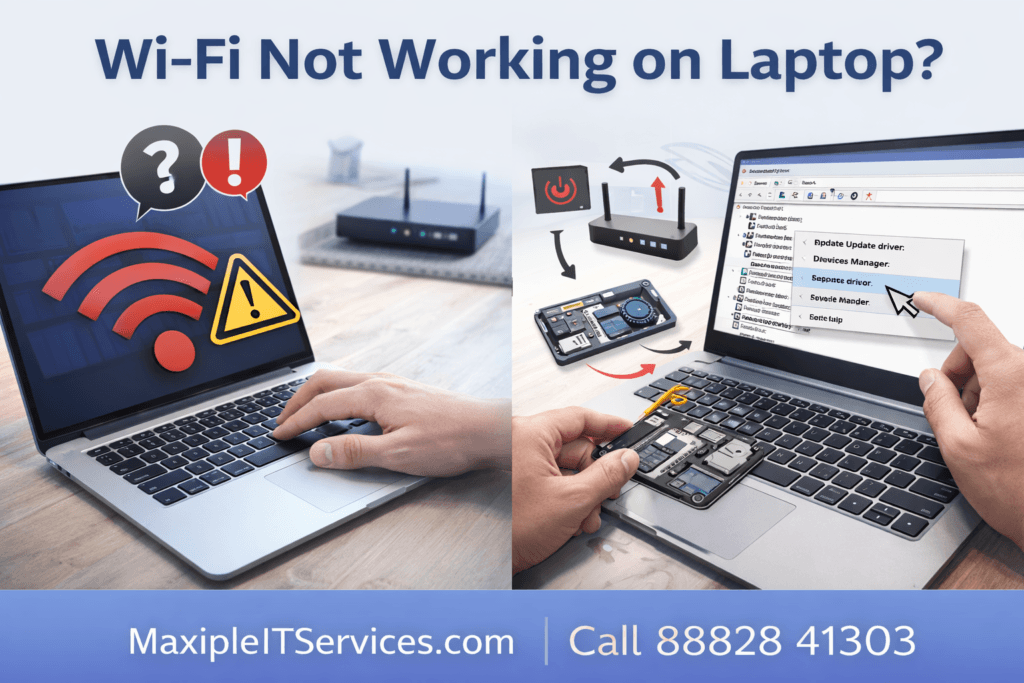
Experiencing Wi-Fi not working on laptop issues can be frustrating, especially when you need a stable internet connection for work, study, or entertainment. Understanding why your Wi-Fi is not working on laptop and how to fix it is crucial for a smooth online experience.
At Maxiple IT Services, we provide expert solutions for all laptop Wi-Fi issues. Call 88828 41303 for professional help today.
Common Reasons for Wi-Fi Not Working on Laptop
If your Wi-Fi is not working on laptop, it could be due to multiple reasons. Identifying the cause helps in applying the correct solution.
Disabled Wi-Fi Adapter: Sometimes the laptop’s Wi-Fi adapter may be disabled accidentally.
Driver Issues: Outdated or corrupted Wi-Fi drivers can prevent connectivity.
Router or Modem Problems: The issue may not always be your laptop; routers or modems can fail.
Network Configuration Errors: Incorrect IP or DNS settings can cause connection issues.
Hardware Problems: Faulty Wi-Fi cards or damaged internal antennas can lead to a Wi-Fi not working on laptop.
Interference or Range Issues: Physical barriers or other devices may disrupt Wi-Fi signals.
How to Fix Wi-Fi Not Working on Laptop
Here are reliable solutions to fix Wi-Fi not working on laptop problems:
1. Check Wi-Fi Adapter Status
Ensure your Wi-Fi adapter is enabled.
Steps:
Open Control Panel → Network and Internet → Network Connections
Right-click on your Wi-Fi adapter and select Enable if it is disabled
Restart your laptop to apply changes
2. Update or Reinstall Wi-Fi Drivers
Outdated drivers are a common cause of Wi-Fi not working on laptop.
Steps:
Press Windows + X → Device Manager
Expand Network adapters
Right-click your Wi-Fi adapter → Update driver
If updating fails, uninstall the driver and restart your laptop to reinstall automatically
3. Restart Router and Laptop
Sometimes, Wi-Fi not working on laptop is due to temporary network issues.
Steps:
Turn off your router and modem
Wait for 30 seconds, then turn them back on
Restart your laptop and reconnect to Wi-Fi
4. Reset Network Settings
Resetting network settings can fix configuration issues causing Wi-Fi not working on laptop.
Steps (Windows 10/11):
Go to Settings → Network & Internet → Status → Network reset
Click Reset now and restart your laptop
Steps (Mac):
Go to System Preferences → Network
Select Wi-Fi → Advanced → Remove saved networks
Reconnect to Wi-Fi
5. Check IP and DNS Settings
Incorrect IP or DNS can prevent your laptop from connecting to Wi-Fi.
Steps:
Open Control Panel → Network and Sharing Center → Change adapter settings
Right-click your Wi-Fi → Properties → Internet Protocol Version 4 (TCP/IPv4)
Select Obtain IP address automatically and Obtain DNS server automatically
6. Disable Firewall or Antivirus Temporarily
Sometimes security software may block Wi-Fi connectivity. Temporarily disabling your firewall or antivirus can help troubleshoot Wi-Fi not working on laptop issues. Remember to re-enable them after testing.
7. Scan for Malware
Malware infections can affect network connectivity. Run a full system scan using your antivirus software to ensure your laptop is clean.
8. Hardware Check
If none of the above works, the issue may be hardware-related:
Faulty Wi-Fi card
Loose or damaged antenna
Motherboard issues affecting connectivity
Professional repair is recommended in this case.
Why Choose Maxiple IT Services for Wi-Fi Repair
At Maxiple IT Services, we offer:
Expert Wi-Fi troubleshooting and repair for all laptop brands
Driver updates and network configuration fixes
Hardware diagnostics and Wi-Fi card replacement
Fast, reliable service with minimal downtime
Call 88828 41303 today to get your laptop’s Wi-Fi working again.
Preventing Wi-Fi Issues on Laptops
To avoid Wi-Fi not working on laptop problems in the future:
Keep your drivers updated regularly
Avoid physical damage to the laptop’s Wi-Fi card
Use a reliable router and maintain firmware updates
Keep your laptop free from malware
Regularly restart your network devices
Conclusion
A Wi-Fi not working on laptop issue can disrupt your workflow and online activities. Whether it’s a software, configuration, or hardware problem, professional intervention ensures your laptop reconnects efficiently and reliably.
Trust Maxiple IT Services for expert Wi-Fi repair and troubleshooting. Call 88828 41303 today and get your internet connection back in top condition.