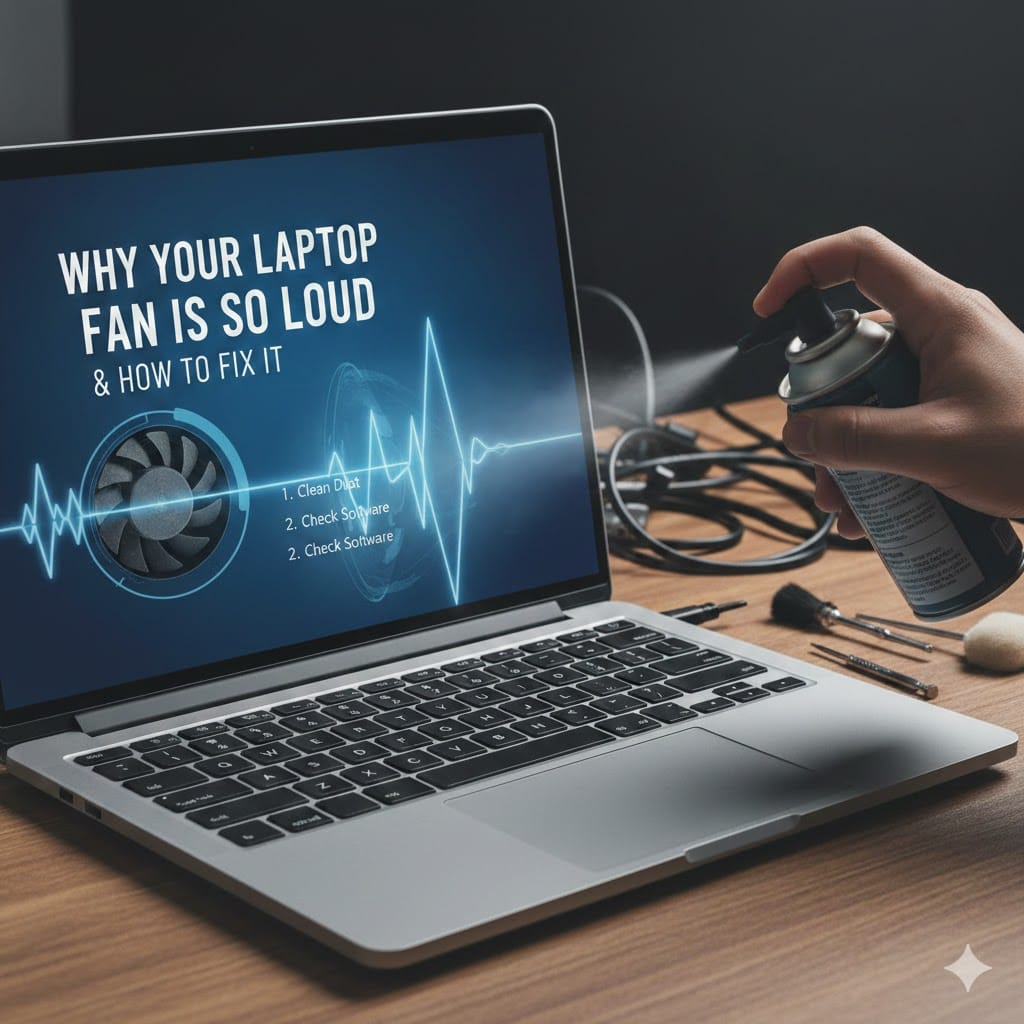
A loud laptop fan can quickly turn from a small annoyance into a serious concern. If you are constantly hearing a buzzing or whirring sound, your system may be struggling internally. In most cases, a laptop fan noise problem is linked to overheating, dust buildup, or heavy background processes. Ignoring the issue can reduce performance and even damage internal components over time. Understanding the causes behind a laptop fan noise problem helps you take action before costly repairs become necessary. In this guide, we explain why your laptop fan becomes loud and how you can fix it effectively.
Common Causes of Noise Problem
A laptop fan noise problem usually develops gradually, but sometimes it appears suddenly after heavy usage. Identifying the cause is the first step toward solving it correctly.
Dust and Dirt Blocking Airflow
Dust accumulation inside the cooling vents is one of the most common reasons behind excessive fan noise. When airflow becomes restricted, the fan works harder to push hot air out of the system. This extra effort creates noticeable sound and vibration.
Over time, dust layers form on heat sinks and internal components. This prevents proper heat dissipation and forces the fan to spin at higher speeds. Regular internal cleaning can prevent this situation from becoming severe.
Overheating Hardware Components
High CPU or GPU usage generates additional heat inside your laptop. When temperatures rise beyond safe limits, the cooling system increases fan speed automatically. This response is designed to protect sensitive hardware parts.
Gaming, video editing, and running multiple applications simultaneously often trigger this issue. If overheating continues frequently, it may indicate a deeper laptop fan noise problem requiring professional inspection.
Background Software and Malware
Unnecessary background programs can consume system resources without your knowledge. These processes increase CPU usage, which in turn raises internal temperature levels. As a result, the fan runs faster and louder.
Malware infections can also cause unusual system activity. If your laptop suddenly becomes noisy without heavy usage, a virus scan may reveal the root cause.
How to Fix Problem at Home
A laptop fan noise problem can often be resolved with simple troubleshooting steps. Before visiting a repair technician, try these practical solutions carefully.
Clean the Cooling Vents Properly
Turn off your laptop and disconnect the power supply completely. Use compressed air to blow dust out from the side and bottom vents. Avoid inserting sharp objects that may damage internal parts.
If you are comfortable opening the back panel, gently clean the internal fan area. However, improper handling can void warranty coverage, so proceed carefully.
Adjust Power and Performance Settings
Switching to balanced or power-saving mode can reduce CPU usage instantly. Lower system performance means reduced heat generation and less fan activity.
Close unnecessary startup applications through Task Manager. This helps lower background load and minimizes the risk of recurring laptop fan noise problem symptoms.
Update Drivers and Operating System
Outdated drivers may cause inefficient hardware communication. Installing the latest updates can improve system stability and temperature management.
Operating system updates often include performance optimizations. Keeping your laptop updated helps prevent overheating and unexpected fan acceleration.
When Laptop Fan Noise Problem Needs Professional Repair
Sometimes, home troubleshooting does not completely solve the laptop fan noise problem. Persistent loud sounds may indicate mechanical damage or thermal paste failure.
Faulty Cooling Fan Replacement
If the fan motor becomes worn out, it may produce grinding or rattling sounds. In such cases, cleaning alone will not fix the issue effectively.
Replacing the cooling fan requires proper tools and technical expertise. A certified technician can install a compatible part safely without harming other components.
Thermal Paste Reapplication
Thermal paste sits between the processor and heat sink. Over time, it dries out and reduces heat transfer efficiency. This causes the fan to run continuously at high speed.
Reapplying high-quality thermal paste restores proper heat dissipation. This solution significantly reduces long-term laptop fan noise problem occurrences.
Internal Hardware Inspection
Sometimes, motherboard or GPU faults contribute to overheating. Professional diagnostics help identify hidden issues quickly and accurately.
If you are facing continuous overheating, expert inspection prevents permanent hardware damage. Timely repair also improves overall device lifespan.
Preventing Problem in the Future
Preventing a laptop fan noise problem is easier than dealing with emergency repairs. Regular maintenance keeps your device running smoothly and quietly.
Keep Laptop on Hard Surfaces
Using your laptop on soft surfaces blocks ventilation areas. Beds, cushions, and carpets trap heat underneath the device.
Always place your laptop on a flat, hard surface to ensure proper airflow. This simple habit significantly reduces internal temperature buildup.
Schedule Regular Cleaning
Professional cleaning every six to twelve months helps maintain optimal cooling efficiency. Dust removal improves airflow and reduces unnecessary fan strain.
Regular servicing also allows technicians to check internal components for early warning signs. Preventive care lowers the risk of severe laptop fan noise problem development.
Avoid Overloading Your System
Running too many heavy programs simultaneously stresses your hardware. Close unused applications to maintain balanced performance levels.
If your work requires intensive software usage, consider upgrading RAM or installing an SSD. Hardware upgrades reduce workload pressure and improve cooling performance.
Get Expert Help for Noise Problem
If your device continues making loud sounds despite troubleshooting, professional assistance is recommended. Delaying repair can lead to motherboard or processor failure.
At Maxiple IT Services, we provide reliable laptop and computer repair solutions. Our technicians specialize in diagnosing and fixing every type of laptop fan noise problem quickly and efficiently.
Visit our website: https://maxipleitservices.com/
Call us directly at 8882841303 for immediate assistance.
We ensure affordable pricing, genuine spare parts, and fast turnaround time. Protect your laptop from overheating damage with expert service today.
Final Thoughts
A laptop fan noise problem is often a warning sign that your system needs attention. Whether the issue is dust buildup, overheating, or hardware failure, early action prevents bigger complications.
Regular cleaning, optimized performance settings, and professional maintenance can keep your laptop operating quietly. If the noise persists, do not ignore it.
Contact experienced technicians and restore your laptop’s performance before minor issues turn into costly repairs.