Understanding the Laptop Speaker Not Working Issue
Laptop speakers allow users to listen to music, watch videos, attend meetings, and hear system alerts. When the speakers suddenly stop working, it can disrupt productivity and entertainment. Many users experience the laptop speaker not working – causes & repair issue where the laptop appears to function normally but produces no sound.
The problem can occur due to muted system settings, outdated audio drivers, software conflicts, or physical damage to the speaker components. Understanding the laptop speaker not working – causes & repair helps users quickly identify whether the problem is software related or requires professional hardware repair.
Common Causes of Laptop Speaker Not Working
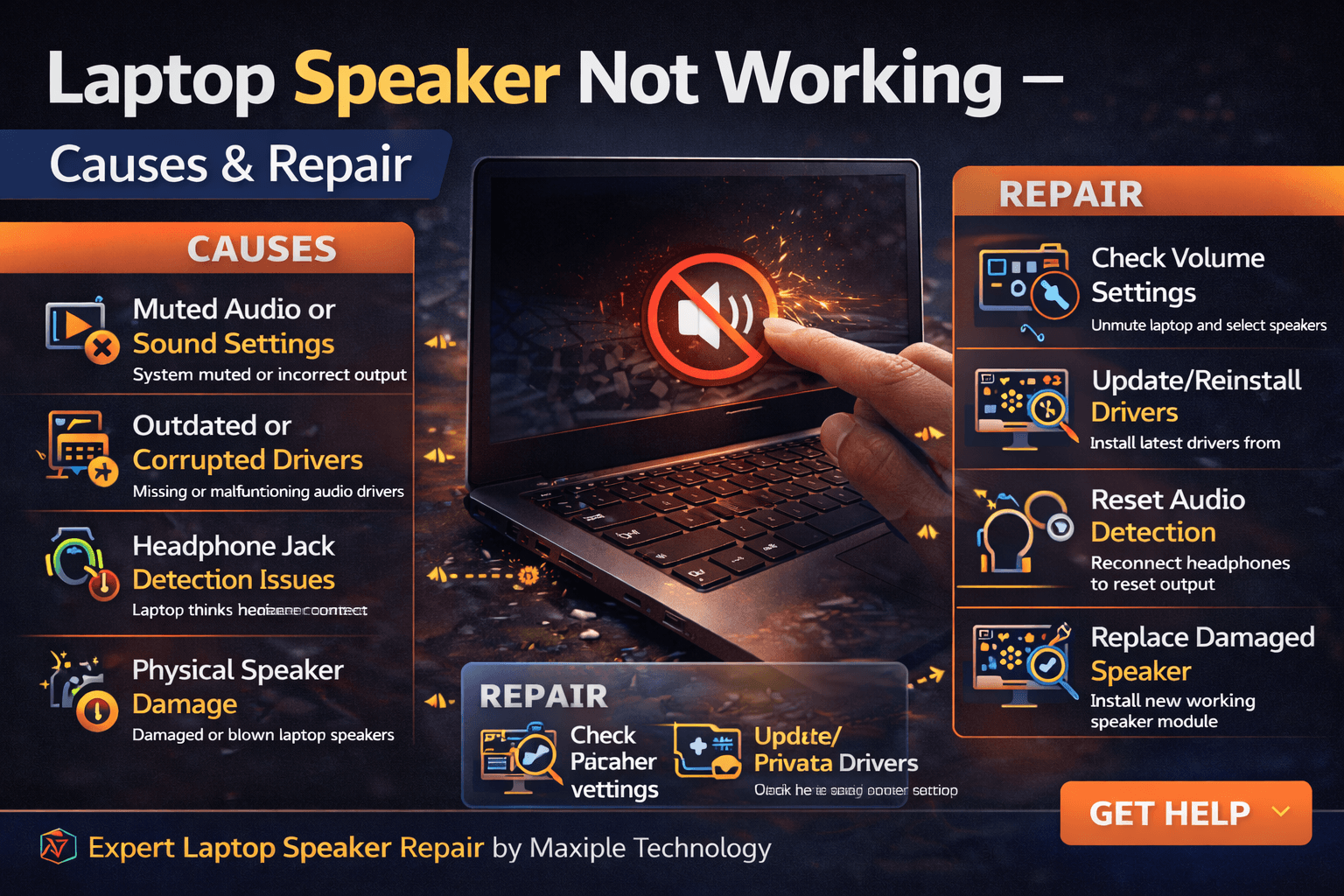
Muted Audio or Incorrect Sound Settings
Signs
One of the simplest reasons behind the laptop speaker not working – causes & repair issue is muted audio or incorrect sound settings. Users may accidentally mute the system, reduce the volume to zero, or select the wrong audio output device. In these situations, the laptop may appear to have speaker problems even though the hardware is working normally.
Fix
Check the volume icon on the taskbar and ensure that the system is not muted. Open the sound settings and confirm that the internal laptop speakers are selected as the default audio device. Increasing the volume and correcting the audio output settings often resolves the problem immediately.
Outdated or Corrupted Audio Drivers
Signs
Audio drivers allow the operating system to communicate with the laptop speakers. If these drivers become outdated or corrupted, users may experience the laptop speaker not working – causes & repair problem. Signs may include missing audio devices in sound settings, sound distortion, or complete absence of sound.
Fix
Updating or reinstalling audio drivers can resolve this issue. Open Device Manager, locate the sound drivers, and install the latest version from the manufacturer’s website. After updating the driver, restarting the laptop may restore normal speaker functionality.
Headphone Jack Detection Issues
Signs
Sometimes laptops mistakenly detect that headphones are plugged in even when they are not. This can cause the laptop speaker not working – causes & repair issue because the system sends audio output to the headphone jack instead of the speakers. Users may notice that sound returns only when headphones are plugged in.
Fix
Try plugging and unplugging headphones several times to reset the audio port. Cleaning the headphone jack carefully can also help remove dust or debris that may be causing detection issues.
Physical Speaker Damage
Signs
Internal laptop speakers can become damaged due to liquid spills, drops, or general wear over time. When this happens, users may notice distorted sound, crackling noises, or complete silence from the speakers. This is a common hardware-related laptop speaker not working – causes & repair issue.
Fix
Damaged speakers typically require replacement. A technician can open the laptop and install a new speaker module to restore sound output.
At Maxiple Technology, technicians provide reliable laptop speaker repair and replacement services. You can explore repair services here:
https://maxipleitservices.com/
Operating System or Software Conflicts
Signs
System updates or software conflicts can sometimes interfere with audio settings. Users facing the laptop speaker not working – causes & repair problem may notice that sound stopped working after installing updates or new applications.
Fix
Restarting the laptop and checking system updates can help resolve software conflicts. Running the built-in audio troubleshooter in the operating system may also identify and fix sound-related problems.
Professional Laptop Speaker Repair Services
If troubleshooting steps do not resolve the laptop speaker not working – causes & repair issue, the problem may involve damaged internal speakers or motherboard audio circuits.
Professional repair technicians can diagnose the problem accurately and replace faulty components safely.
Maxiple Technology provides professional laptop repair services including:
Laptop speaker replacement
Audio driver troubleshooting
Motherboard audio circuit repair
MacBook and Windows laptop repair
Advanced laptop diagnostics
You can also check customer reviews here:
https://share.google/CjaTyEXpJX72nL6LX
Expert technicians can restore proper sound functionality and ensure your laptop works normally again.
Conclusion
The laptop speaker not working – causes & repair issue can occur due to muted settings, outdated drivers, headphone jack conflicts, software errors, or damaged speakers. While some problems can be solved with simple adjustments, others may require professional repair.
Understanding the laptop speaker not working – causes & repair helps users quickly diagnose sound issues and restore normal audio functionality.