Understanding the Laptop Screen Showing Lines Issue
A laptop display should provide a clear and stable image. However, many users encounter the laptop screen showing lines – causes & repair guide issue where vertical or horizontal lines appear across the screen. These lines can interfere with normal laptop usage and may indicate hardware or software problems.
The laptop screen showing lines – causes & repair guide problem can occur due to display panel damage, loose internal cables, graphics card issues, or outdated drivers. Identifying the exact cause is important to determine whether the issue requires simple troubleshooting or professional repair.
Common Causes of Laptop Screen Showing Lines
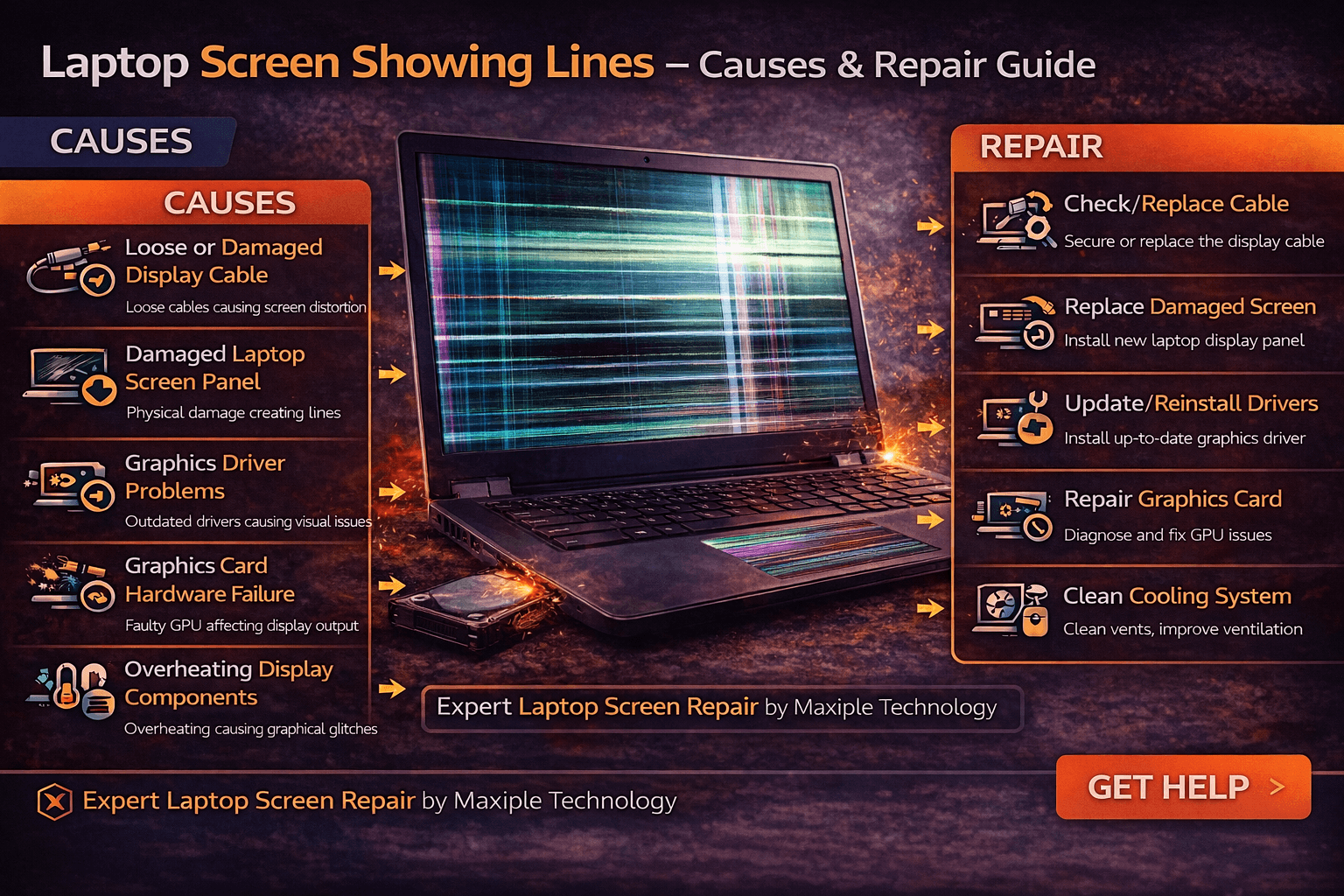
Loose or Damaged Display Cable
Signs
Inside every laptop, a display cable connects the screen to the motherboard. If this cable becomes loose or damaged, users may experience the laptop screen showing lines – causes & repair guide issue. Signs include lines appearing when the screen moves, flickering display, or the image disappearing when adjusting the lid.
Fix
Reconnecting or replacing the display cable can usually solve this problem. A technician may open the laptop and secure the internal cable properly.
Damaged Laptop Screen Panel
Signs
Physical damage to the screen panel is another common reason for the laptop screen showing lines – causes & repair guide problem. Users may notice permanent lines on the display even when the laptop restarts. The lines may appear in different colors or remain fixed in one position.
Fix
If the screen panel itself is damaged, replacing the display is usually required to restore normal visual output.
Graphics Driver Problems
Signs
Graphics drivers control how the laptop communicates with the display hardware. If the driver becomes outdated or corrupted, the laptop may show visual issues such as screen lines, flickering, or distorted images. This is another possible laptop screen showing lines – causes & repair guide scenario.
Fix
Updating or reinstalling the graphics driver can often resolve these issues. Installing the latest driver from the manufacturer’s website helps ensure proper compatibility.
Graphics Card Hardware Failure
Signs
A failing graphics chip can cause severe display problems, including persistent lines across the screen. Users experiencing this laptop screen showing lines – causes & repair guide issue may notice lines appearing even when using external displays.
Fix
Graphics hardware issues usually require professional diagnostics and repair.
At Maxiple Technology, technicians diagnose display problems and repair graphics hardware or replace damaged screens. You can explore repair services here:
https://maxipleitservices.com/
Overheating Display Components
Signs
Excessive heat inside the laptop can affect display components and cause graphical glitches such as screen lines. Users facing the laptop screen showing lines – causes & repair guide issue may notice the lines appearing after prolonged laptop usage.
Fix
Cleaning the laptop cooling system and ensuring proper ventilation can help reduce overheating-related display issues.
Professional Laptop Screen Repair Services
If troubleshooting steps do not resolve the laptop screen showing lines – causes & repair guide issue, the problem may involve internal hardware damage.
Maxiple Technology provides expert laptop repair services including:
Laptop screen replacement
Display cable repair
Graphics chip diagnostics
MacBook and Windows laptop repair
Advanced laptop hardware diagnostics
You can also check customer reviews here:
https://share.google/CjaTyEXpJX72nL6LX
Professional technicians can diagnose display problems and restore clear screen functionality.
Conclusion
The laptop screen showing lines – causes & repair guide issue can occur due to damaged display cables, broken screen panels, graphics driver problems, hardware failures, or overheating.
While some issues can be resolved through simple troubleshooting, others may require professional repair. Understanding the laptop screen showing lines – causes & repair guide helps users quickly identify display problems and restore proper screen performance.