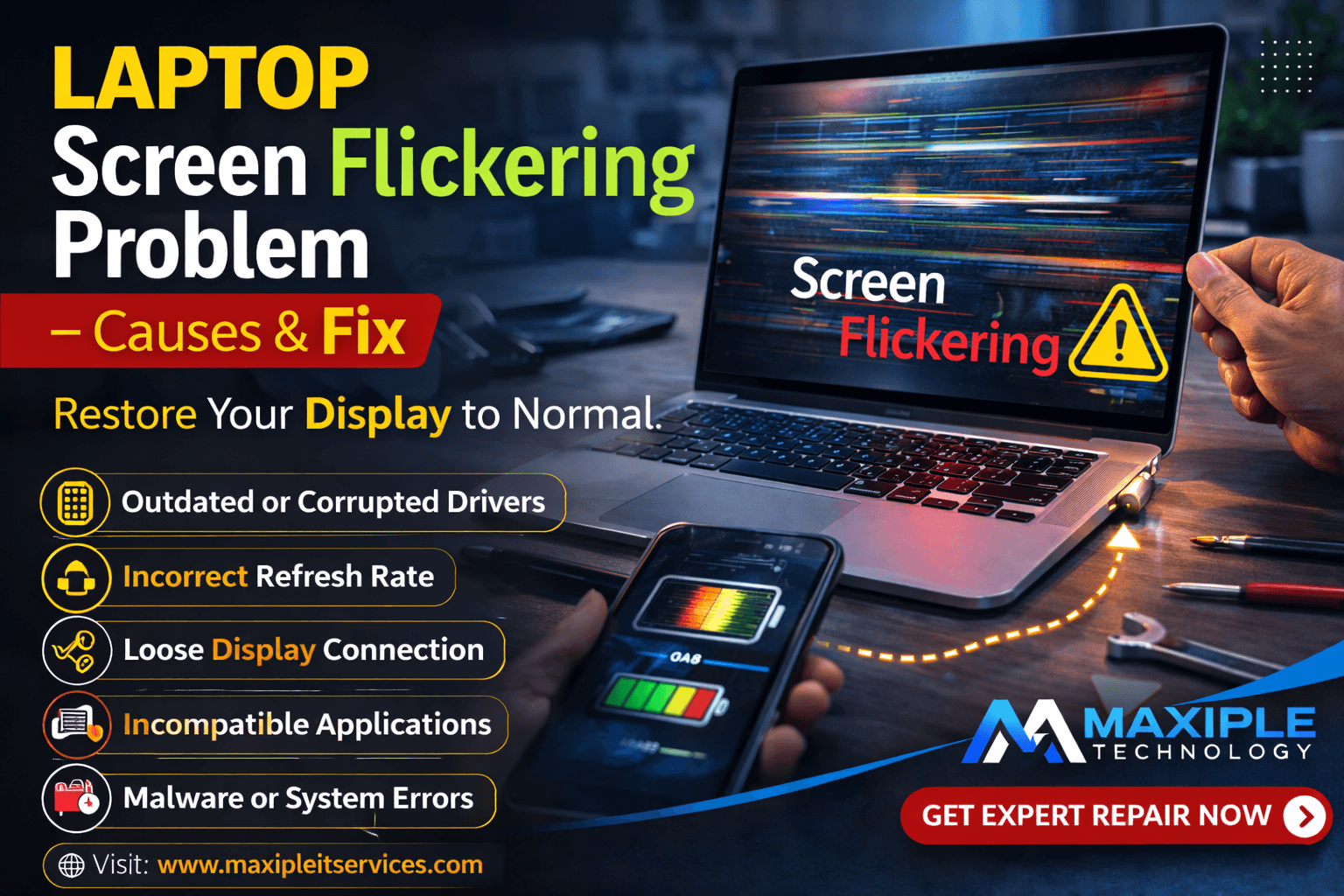
Laptop Screen Flickering Problem – Causes & Fix
A flickering laptop screen can make it difficult to work, watch videos, or browse comfortably. Many users experience sudden blinking, flashing lines, or unstable brightness on their screens. If you are facing this issue, understanding the laptop screen flickering problem – causes & fix can help you diagnose the issue quickly and prevent further damage.
Screen flickering may occur due to software glitches, outdated drivers, loose display connections, or hardware failures. Identifying the exact laptop screen flickering problem – causes & fix allows users to apply the right solution before the problem worsens.
In this guide, we will explore the most common causes of laptop screen flickering and the practical fixes that can resolve the issue.
Common Causes of Laptop Screen Flickering and Their Fixes
1. Outdated or Corrupted Display Drivers
One of the most common reasons behind the laptop screen flickering problem – causes & fix is outdated or corrupted graphics drivers.
Display drivers allow the operating system to communicate with the laptop’s graphics card. When drivers become outdated or corrupted, the screen may start flickering or showing visual glitches.
Possible signs
Screen flickers when opening programs
Display blinking after Windows updates
Graphics glitches while scrolling
Fix
Update the graphics driver from Device Manager
Download the latest driver from the manufacturer’s website
Restart the laptop after updating drivers
Updating drivers often resolves the laptop screen flickering problem – causes & fix quickly.
2. Incorrect Refresh Rate Settings
The refresh rate controls how many times the screen updates per second. If the refresh rate is set incorrectly, it can cause the laptop screen flickering problem – causes & fix issue.
Some laptops automatically change refresh rates during software updates or display configuration changes.
Fix
Right-click on the desktop
Open Display Settings
Go to Advanced Display Settings
Select the recommended refresh rate for your display
Setting the correct refresh rate can eliminate the laptop screen flickering problem – causes & fix issue.
3. Loose Display Cable or Internal Connection
Inside every laptop, a display cable connects the screen to the motherboard. If this cable becomes loose or damaged, the laptop screen may flicker when you move the lid.
This is another common hardware-related laptop screen flickering problem – causes & fix.
Possible signs
Screen flickers when adjusting the laptop lid
Horizontal lines appearing on the screen
Display turning on and off randomly
Fix
Internal display cable issues require professional inspection. A technician can open the laptop and secure or replace the display cable to resolve the laptop screen flickering problem – causes & fix.
At Maxiple Technology, trained technicians diagnose display cable problems safely using professional tools.
You can explore expert laptop repair services here:
https://maxipleitservices.com/
4. Incompatible Applications
Sometimes specific applications may cause screen flickering due to compatibility issues with the operating system or graphics drivers.
Certain programs use heavy graphics resources, which can trigger the laptop screen flickering problem – causes & fix.
Fix
Close recently installed applications
Update the application software
Uninstall problematic apps
Checking application compatibility can help resolve software-related display issues.
5. Malware or System Errors
Malware and system errors can also cause unusual display behavior, including flickering screens. If malicious programs are running in the background, they may interfere with display drivers.
This may lead to the laptop screen flickering problem – causes & fix.
Fix
Run a full antivirus scan
Remove suspicious programs
Update your operating system
Cleaning the system can restore normal display functionality.
6. Faulty Graphics Card
A damaged graphics card is another serious cause of the laptop screen flickering problem – causes & fix.
When the GPU fails, the display may flicker, show artifacts, or freeze frequently.
Signs
Flickering across the entire screen
Colored lines or visual distortions
Laptop overheating during graphics tasks
Fix
Graphics card issues often require professional diagnostics. Repair technicians can determine whether the GPU needs repair or replacement.
Professional Laptop Screen Repair Services
If basic troubleshooting does not solve the laptop screen flickering problem – causes & fix, the issue may involve internal hardware such as display cables, GPU circuits, or screen panels.
In such situations, professional repair services are recommended.
Maxiple Technology provides reliable laptop repair services including:
Laptop screen replacement
Display cable repair
Graphics chip repair
MacBook and Windows laptop repair
Quick diagnostics and expert support
You can also check service reviews and customer feedback here:
https://share.google/CjaTyEXpJX72nL6LX
Professional technicians can diagnose the laptop screen flickering problem – causes & fix and restore your laptop display safely.
Conclusion
The laptop screen flickering problem – causes & fix can occur due to outdated drivers, incorrect refresh rate settings, loose display cables, incompatible software, or graphics hardware issues.
Fortunately, many of these problems can be solved through simple troubleshooting steps. However, if the flickering continues, professional repair services can help identify the root cause and prevent further damage.
Understanding the laptop screen flickering problem – causes & fix allows users to take quick action and maintain a stable, reliable laptop display.