Understanding the Laptop Camera Not Working Issue
Laptop webcams are essential for video calls, online meetings, classes, and content creation. When the camera stops working, it can disrupt work and communication. Many users experience the laptop camera not working – causes & fix issue where the webcam fails to start or is not detected by applications.
The problem can occur due to privacy settings, outdated drivers, software conflicts, or hardware faults. Understanding the laptop camera not working – causes & fix helps users quickly diagnose whether the issue is software-related or requires professional repair.
Common Causes of Laptop Camera Not Working
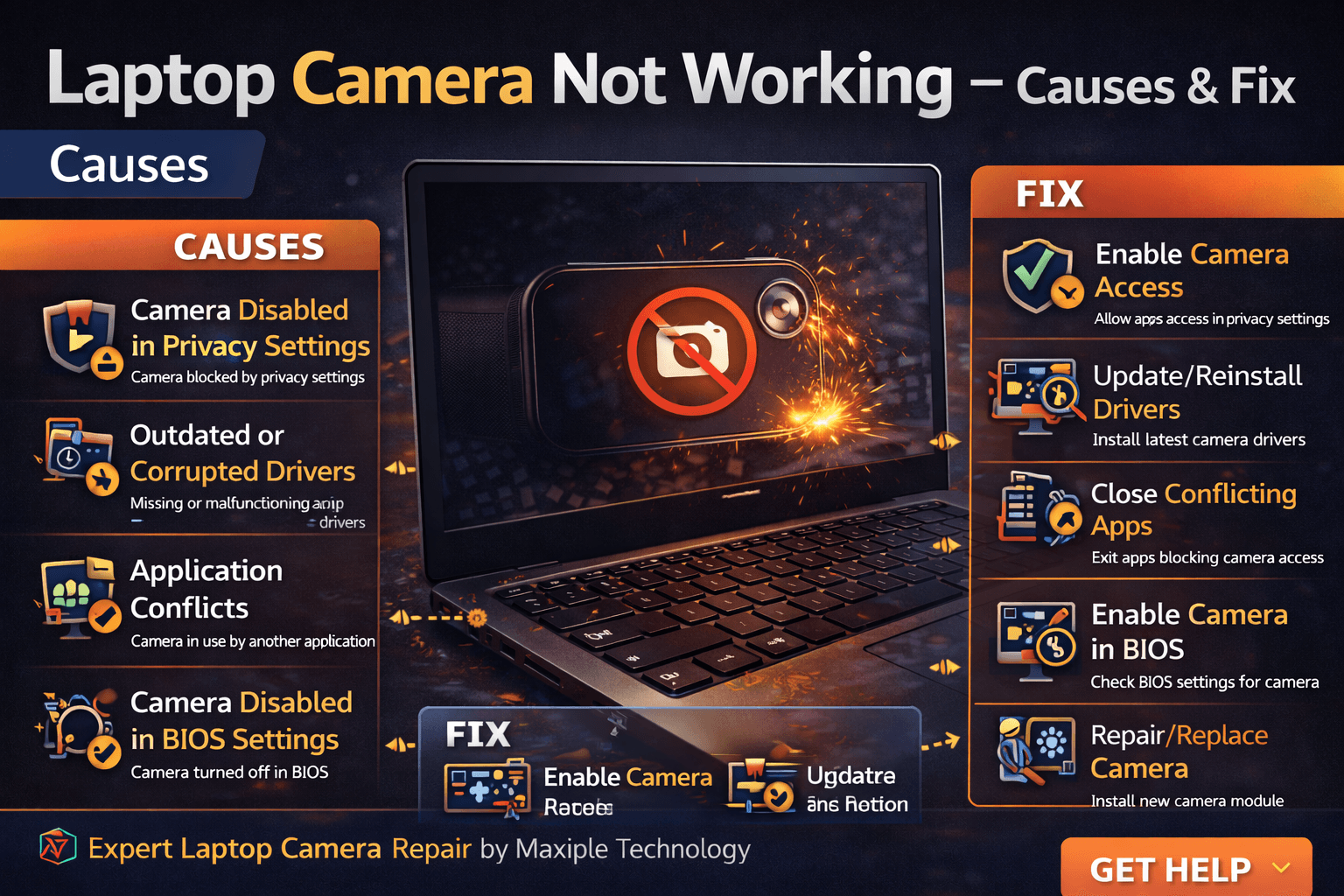
Camera Disabled in Privacy Settings
Signs
One of the most common reasons behind the laptop camera not working – causes & fix problem is disabled camera access in privacy settings. Many operating systems allow users to block camera access for security reasons. When this happens, applications such as Zoom, Google Meet, or Skype may display errors like “Camera not detected” or “Camera access denied.”
Fix
Open the system privacy settings and ensure that camera access is enabled for the applications you want to use. Allowing the operating system and apps to access the camera often resolves the problem immediately.
Outdated or Corrupted Camera Drivers
Signs
Camera drivers allow the operating system to communicate with the webcam hardware. If these drivers become outdated or corrupted, the system may not recognize the camera device. Users facing the laptop camera not working – causes & fix issue may notice that the webcam does not appear in Device Manager or applications fail to detect it.
Fix
Updating or reinstalling the camera driver can solve this issue. Open Device Manager, locate the camera device, and install the latest driver from the manufacturer’s website. After updating the driver, restart the laptop and check the camera again.
Application Conflicts
Signs
Sometimes multiple applications attempt to access the camera at the same time. This can lead to the laptop camera not working – causes & fix issue where the webcam is already in use by another program. Users may see error messages stating that the camera is currently being used by another application.
Fix
Close all applications that might be using the camera and restart the program you want to use. Restarting the laptop can also clear background processes that may be blocking camera access.
Camera Disabled in BIOS Settings
Signs
Some laptops allow users to disable the webcam through BIOS settings for security reasons. If the camera is disabled at the BIOS level, the operating system will not detect it. This can result in the laptop camera not working – causes & fix issue.
Fix
Enter the BIOS settings during startup and check whether the camera is enabled. If it is disabled, enabling the webcam from BIOS settings will restore camera functionality.
Hardware Damage to Webcam
Signs
Physical damage to the webcam module or internal cables can also cause the laptop camera not working – causes & fix problem. Users may notice a completely black screen, blurry video, or the camera not being detected at all.
Fix
Hardware issues usually require professional repair. A technician can inspect the webcam module and replace it if necessary.
At Maxiple Technology, technicians diagnose webcam problems and replace faulty camera modules safely. You can explore repair services here:
https://maxipleitservices.com/
Professional Laptop Camera Repair Services
If troubleshooting steps do not resolve the laptop camera not working – causes & fix issue, the problem may involve internal hardware components such as the webcam module or motherboard connections.
Maxiple Technology provides professional laptop repair services including:
Laptop webcam replacement
Camera driver troubleshooting
Internal cable repair
MacBook and Windows laptop repair
Advanced laptop diagnostics
You can also check customer reviews here:
https://share.google/CjaTyEXpJX72nL6LX
Professional repair ensures that the webcam works properly again.
Conclusion
The laptop camera not working – causes & fix issue can occur due to privacy settings, outdated drivers, software conflicts, BIOS settings, or hardware damage. While some problems can be solved through simple troubleshooting, others may require professional repair.
Understanding the laptop camera not working – causes & fix helps users restore their webcam functionality and continue using their laptop for meetings, classes, and communication.