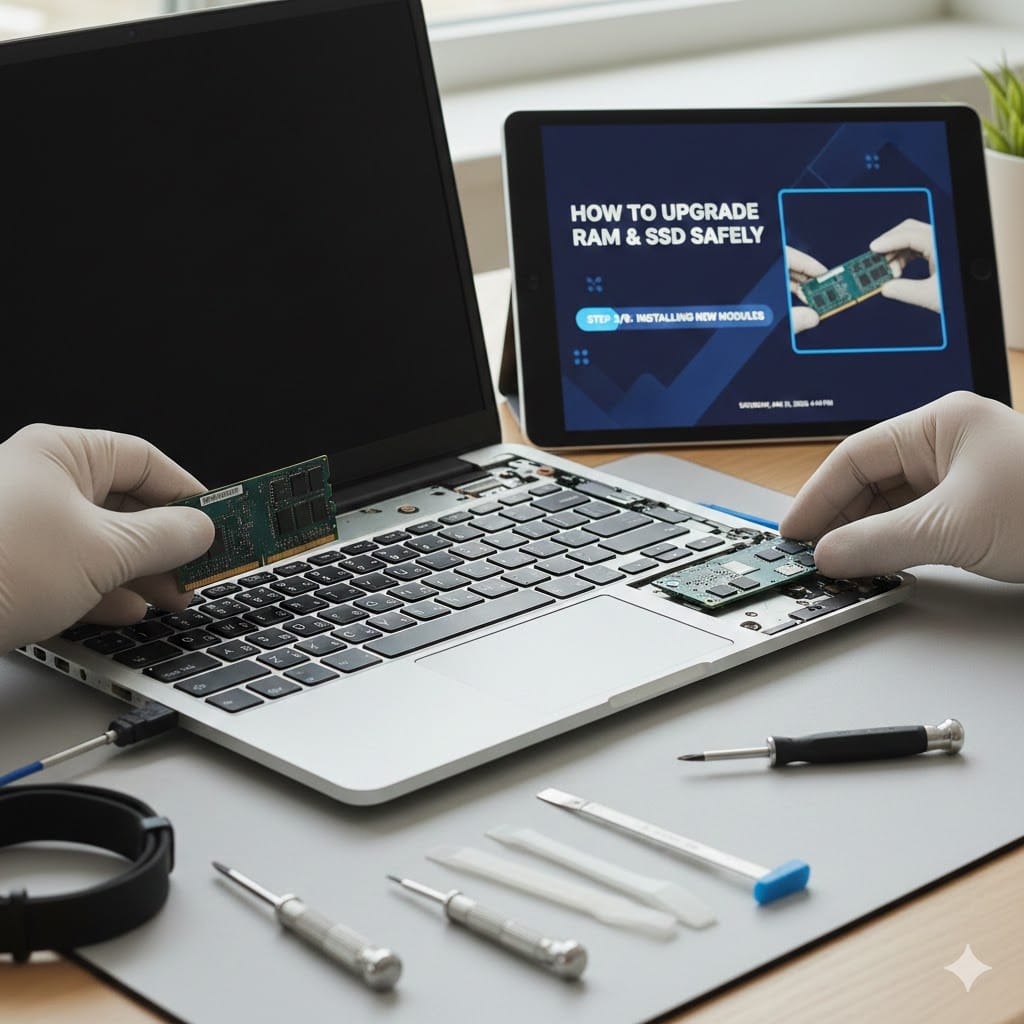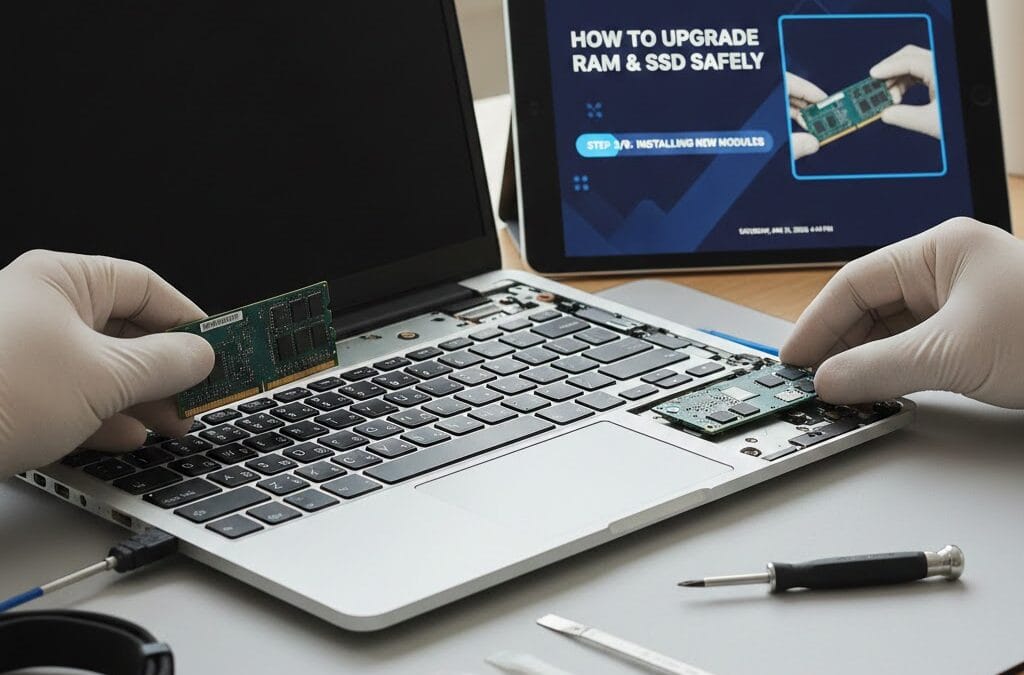
Upgrading your laptop or desktop is one of the smartest ways to boost performance without buying a new system. s a common question among users who want faster How to upgrade speed, better multitasking, and improved boot times. At Maxiple IT Services (https://maxipleitservices.com/), we help users upgrade RAM and SSD safely and professionally. If you need expert assistance, you can call us at +91 88828 41303.
In this detailed guide, you will learn how to upgrade RAM and SSD safely, the tools required, compatibility checks, step-by-step installation, and common mistakes to avoid. This blog is beginner-friendly and perfect for anyone planning a safe hardware upgrade.
Why You Should Upgrade RAM and SSD
Upgrading RAM and SSD is one of the most cost- How to upgrade effective ways to improve computer performance.
Benefits of RAM Upgrade
Faster multitasking
Smoother performance while using heavy software
Reduced system lag and freezing
Benefits of SSD Upgrade
Faster boot time
Quick file transfers
Improved system responsiveness
Better durability than HDD
If your system feels slow, learning can give your computer a new life.
Check Compatibility Before Upgrading RAM and SSD
Before upgrading, How to upgrade . compatibility is critical. Installing incompatible hardware can damage your system.
RAM Compatibility Checklist
RAM type (DDR3, DDR4, DDR5)
Maximum supported RAM capacity
RAM speed (MHz)
Number of RAM slots
You can check compatibility using:
Manufacturer website
System manual
Task Manager or BIOS
SSD Compatibility Checklist
SSD type (SATA, NVMe, M.2)
Available slot in your laptop or desktop
Supported storage capacity
Proper compatibility checks are the foundation of how to upgrade RAM and SSD safely.
Tools Required to Upgrade RAM and SSD Safely
Before opening your device, gather these tools:
Precision screwdriver set
Anti-static wrist strap (recommended)
Clean, flat working surface
External drive or cloud storage (for backup)
Always power off your device and unplug it before starting.
Backup Your Data Before SSD Upgrade
Data backup is mandatory before upgrading an SSD.
Backup Options
External hard drive
Cloud storage (Google Drive, OneDrive)
Disk cloning software
Skipping backup is one of How to upgrade the biggest mistakes when learning how to upgrade RAM and SSD safely.
How to Upgrade RAM Safely (Step-by-Step)
Follow these steps carefully to upgrade RAM without damage.
Step 1: Power Off and Disconnect
Shut down the computer
Remove power cable and battery (if removable)
Step 2: Open the Back Panel
Use the correct screwdriver
Keep screws safely aside
Step 3: Locate the RAM Slot
RAM slots are long and thin
Release side clips gently
Step 4: Install the New RAM
Align the notch correctly
Insert at a slight angle
Press down until it clicks
Step 5: Close and Test
Reattach the panel
Power on the system
Check RAM in system settings
This process ensures how to upgrade RAM safely without causing system issues.
How to Upgrade SSD Safely (Step-by-Step)
SSD upgrades require extra care, especially for laptops.
Step 1: Identify the SSD Slot
SATA SSD: connected with cable
M.2 NVMe SSD: mounted directly on motherboard
Step 2: Remove Old Storage (If Required)
Unscrew carefully
Disconnect gently
Step 3: Install the New SSD
Align SSD properly
Secure with screw
Avoid touching connectors
Step 4: Clone or Install OS
Clone old drive (recommended)
Or perform a fresh OS installation
Following these steps is essential for without data loss.
Common Mistakes to Avoid During RAM and SSD Upgrade
Avoid these mistakes to How to upgrade ensure a safe upgrade:
Installing incompatible RAM or SSD
Not grounding yourself (static damage)
Forgetting data backup
Forcing components into slots
Using wrong screwdriver size
Understanding these mistakes is a key part of
Laptop vs Desktop Upgrade Differences
Laptop Upgrade
Limited space
Fewer upgrade options
Requires extra care
Desktop Upgrade
Easier access
More slots and flexibility
Better cooling
Whether laptop or How to upgrade desktop, the principles of remain the same.
When You Should Get Professional Help
If you are unsure about:
Compatibility
Opening sealed laptops
Data migration
BIOS or OS installation
It’s best to contact professionals. Maxiple IT Services offers expert RAM and SSD upgrades with guaranteed safety.
📞 Call: +91 88828 41303
🌐 Website: https://maxipleitservices.com/
Final Thoughts: Upgrade RAM and SSD Safely
Learning can significantly improve your computer’s performance and extend its lifespan. With proper compatibility checks, How to upgrade correct tools, and careful installation, you can upgrade confidently. If you want a hassle-free and risk-free upgrade, trust Maxiple IT Services for professional support.
For expert laptop and desktop upgrade services, visit https://maxipleitservices.com/ or call +91 88828 41303 today.