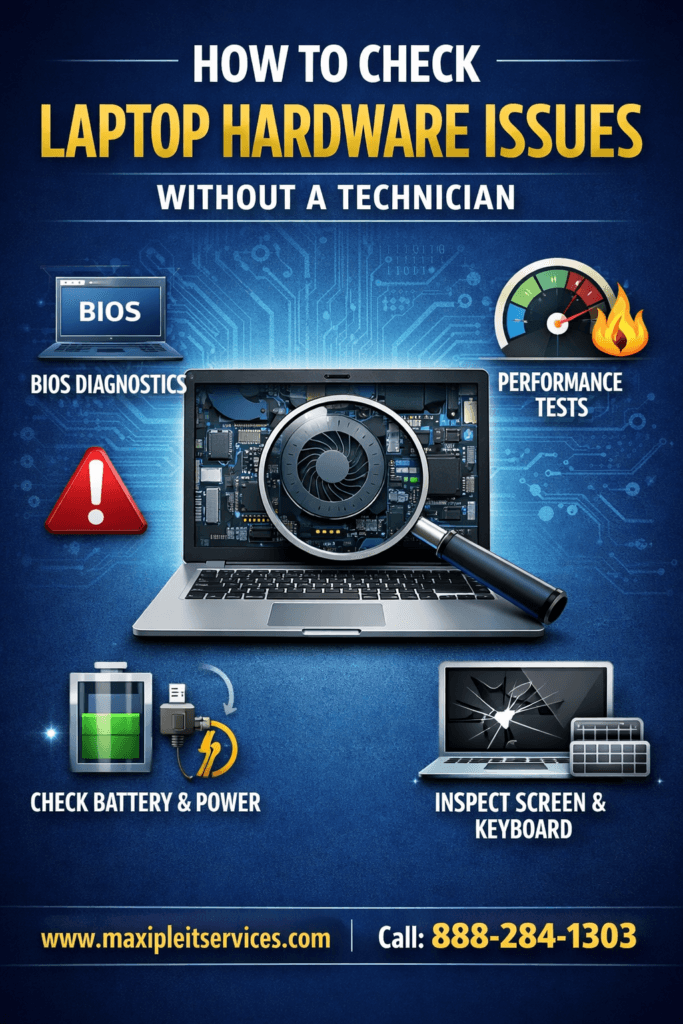
Laptop problems can appear suddenly and disrupt your daily work or studies. Many users assume they must immediately visit a repair shop, but that is not always necessary. Learning how to identify laptop hardware issues on your own can save time, money, and unnecessary stress. With basic checks and built-in tools, you can often detect whether the problem is serious or manageable at home.
This guide explains simple and effective ways to diagnose laptop hardware issues without technical expertise. These steps help you understand what is wrong before contacting a professional. If the issue turns out to be complex, you can confidently explain the problem to a repair expert. For professional assistance, you can always visit https://maxipleitservices.com/ or call 8882841303 for expert laptop repair support.
Understanding Laptop Hardware Issues Before Diagnosis
Before running tests, it is important to understand what qualifies as hardware trouble. Hardware refers to the physical components inside your laptop. This includes the hard drive, RAM, motherboard, battery, screen, keyboard, and cooling fan. When any of these parts fail, performance and usability suffer.
Common Symptoms
Laptop hardware problems usually show physical or performance-related symptoms. Random shutdowns, overheating, screen flickering, and unusual noises are strong indicators. Slow boot times and frequent freezing may also point to failing internal components.
If these symptoms appear consistently, you should begin checking immediately. Early diagnosis can prevent further damage and data loss.
Using Built-In Diagnostics
Most laptops come with built-in diagnostic tools that help users detect hardware faults. These tools are reliable and require no additional software installation.
Using BIOS Diagnostics
Restart your laptop and press the BIOS access key during startup. Common keys include F2, F10, F12, or Esc. Once inside the BIOS menu, look for a diagnostics or hardware test option.
Running this test helps detect memory, processor, and hard drive problems. BIOS diagnostics are useful for identifying major laptop hardware issues quickly and safely.
Issues Through System Performance
Performance issues often reflect deeper hardware problems. Observing how your laptop behaves under normal use can reveal valuable clues.
Laptop Hardware Issues Affecting Startup and Speed
If your laptop takes unusually long to start, hardware components may be failing. A damaged hard drive or insufficient RAM often causes slow boot times. Unexpected freezes during startup are also warning signs.
Monitoring these symptoms consistently helps confirm recurring laptop hardware issues.
Detect Laptop Hardware Issues with Windows Tools
Windows operating systems include several tools designed to identify hardware-related problems.
Issues Using Device Manager
Open Device Manager and check for yellow warning symbols. These icons indicate malfunctioning or unrecognized hardware components. Pay special attention to display adapters, disk drives, and network devices.
If Device Manager shows errors, your laptop likely has underlying laptop hardware issues that require attention.
Diagnose Laptop Hardware Issues Related to Overheating
Overheating is one of the most common hardware problems in laptops. Excess heat damages internal components and reduces lifespan.
Laptop Hardware Issues Caused by Cooling System Failure
Listen for loud fan noises or sudden shutdowns. These symptoms indicate cooling system problems. Dust accumulation inside the laptop often blocks airflow, leading to overheating.
If your laptop feels extremely hot during normal tasks, you are likely dealing with related to cooling.
Test Laptop Hardware Issues in Battery and Power Supply
Battery and charging problems are often mistaken for software issues. However, they usually involve hardware faults.
Laptop Hardware Issues Affecting Battery Performance
Check how long your battery lasts after a full charge. Rapid discharge or failure to charge indicates battery degradation. Inspect the charging port for looseness or damage.
Consistent power problems strongly suggest within the battery or power circuit.
Examine Issues in Display and Screen
Screen problems are visible and easier to diagnose without tools.
Laptop Hardware Issues Causing Screen Flickering
Flickering, black lines, or color distortion usually indicate screen or graphics hardware problems. Connect your laptop to an external monitor. If the external display works fine, the internal screen may be damaged.
This method helps isolate laptop hardware issues related to the display system.
Check Issues in Keyboard and Touchpad
Input devices are also part of laptop hardware and can fail over time.
Issues Affecting Keyboard Response
Unresponsive keys or erratic touchpad movement indicate hardware wear or internal connection issues. External keyboards can help confirm whether the internal keyboard is faulty.
If the problem persists only with the built-in keyboard, laptop hardware issues are likely the cause.
Use Sound and Noise to Detect Laptop Hardware Issues
Your ears can help identify serious hardware problems.
Laptop Hardware Issues Indicated by Unusual Noises
Clicking sounds often indicate hard drive failure. Grinding or rattling noises may come from damaged cooling fans. These sounds should never be ignored.
Audible warnings usually mean advanced laptop hardware issues that need immediate attention.
Confirm Issues with External Testing
Using external devices can help confirm whether the issue is internal or peripheral-related.
Laptop Hardware Issues Verified Using External Devices
Connect external devices such as USB keyboards, mice, or monitors. If external devices work properly, internal components may be faulty.
This process narrows down efficiently without technical expertise.
When Laptop Hardware Issues Require Professional Help
Not all problems can be fixed at home. Some issues require professional tools and experience.
Laptop Hardware Issues That Should Not Be Ignored
Motherboard failures, liquid damage, and internal short circuits need immediate professional repair. Attempting DIY fixes in such cases can worsen the damage.
For expert diagnosis and repair of serious laptop hardware issues, contact Maxiple it Services at 8882841303 or visit https://maxipleitservices.com/.
Final Thoughts on Laptop Hardware Issues Diagnosis
Learning how to identify laptop hardware issues without a technician empowers users to make informed decisions. These basic checks help prevent unnecessary repair costs and reduce downtime. While not all problems can be solved at home, early detection improves repair success.
If you are unsure after performing these steps, professional help ensures safe and accurate repair. Regular maintenance and timely diagnosis keep your laptop running efficiently for years.