HP laptops are popular for performance, durability, and business-friendly features. However, like any electronic device, they can develop technical issues over time. Understanding common HP laptop repair services needs can help users act quickly and prevent costly damage. In this guide, we explain frequent problems, their causes, and practical solutions. If you need professional support, visit https://maxipleitservices.com/ or call 8882841303 for expert assistance. Our technicians specialize in reliable HP laptop repair services for homes and businesses.
Services for Slow Performance Issues
Slow performance is one of the most common complaints among HP laptop users. Systems often become sluggish after months of regular use. Background programs, outdated drivers, and storage limitations usually cause the slowdown.
Causes of Slow Performance in Cases
Insufficient RAM can prevent applications from running smoothly. Traditional hard drives also slow down data access compared to SSD storage. Malware infections frequently consume system resources without the user noticing.
Outdated Windows updates and driver conflicts can create performance bottlenecks. Too many startup programs also increase boot time significantly. Over time, temporary files accumulate and affect overall speed.
Fixes Recommended by
Upgrading from HDD to SSD dramatically improves speed and responsiveness. Increasing RAM ensures smoother multitasking and better performance. Removing unnecessary startup programs reduces boot time effectively.
Install the latest Windows updates and official HP drivers regularly. Use reliable antivirus software to eliminate malware threats. Professional can diagnose deeper hardware issues quickly.
Overheating Problems
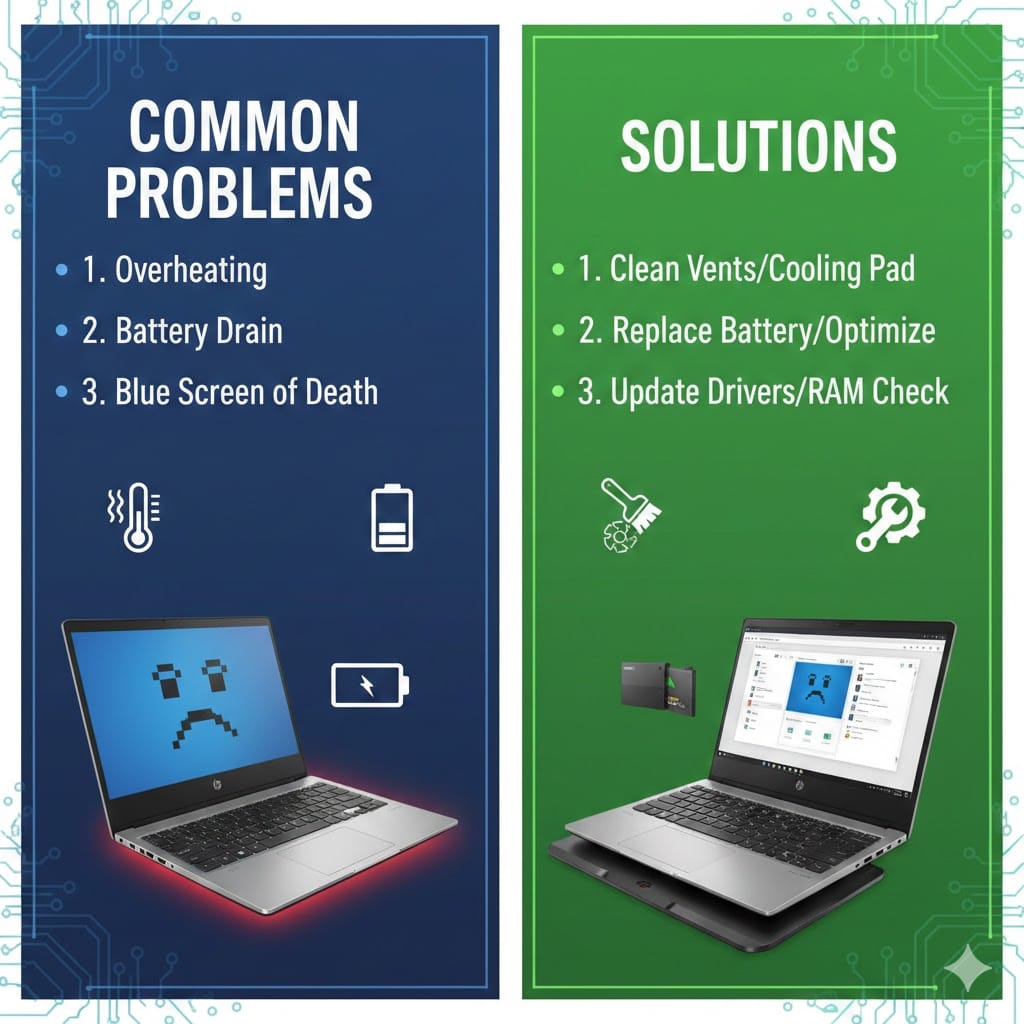
Overheating can damage internal components and reduce laptop lifespan. Many HP models face heating issues due to dust buildup and blocked vents. Ignoring overheating may lead to sudden shutdowns or motherboard damage.
Why Overheating Happens
Dust accumulation inside cooling fans blocks airflow and traps heat. Thermal paste between the processor and heatsink may dry out. Running heavy software continuously increases processor temperature.
Using laptops on soft surfaces restricts ventilation significantly. Faulty cooling fans also contribute to internal heat buildup. Battery problems sometimes generate additional unwanted heat.
Solutions from Professionals
Clean internal fans and vents using proper tools and techniques. Replace old thermal paste to improve heat transfer efficiency. Use cooling pads to enhance airflow during heavy usage.
Avoid placing the laptop on beds or cushions while working. Update BIOS settings if recommended by technicians. Trusted HP ensure safe internal cleaning and maintenance.
Battery and Charging Issues
Battery problems are common after prolonged laptop usage. Users may notice rapid battery drain or charging failures. These issues affect productivity and mobility significantly.
Common Battery Faults
Worn-out batteries lose capacity after repeated charging cycles. Faulty charging adapters may prevent proper power delivery. Loose charging ports can interrupt consistent charging.
Software calibration errors sometimes show incorrect battery percentages. Overheating can also reduce battery health over time. Power management settings may drain battery faster than expected.
Effective Fixes through
Replace the battery with a genuine compatible HP model. Test and replace damaged adapters immediately. Repair or replace faulty charging ports professionally.
Calibrate the battery to restore accurate charge readings. Adjust Windows power settings for optimized battery performance. Reliable provide safe battery replacements and diagnostics.
Display and Screen Problems
Screen issues can disrupt work and entertainment activities. Cracked screens, flickering displays, and black screens are frequent complaints. Display faults require careful diagnosis and repair.
Screen Problems Seen
Physical damage often causes cracked or broken screens. Loose internal display cables create flickering images. Graphics driver corruption may cause black screen errors.
Backlight failure can result in dim or invisible displays. Motherboard issues sometimes prevent proper video output. External pressure damage also affects LCD panels severely.
Screen Repair Solutions from
Replace damaged LCD or LED panels with original parts. Reconnect or replace faulty display cables carefully. Update or reinstall graphics drivers to fix software conflicts.
Check motherboard connections if screen problems persist. Avoid applying pressure to the laptop screen during travel. Professional HP ensure accurate screen replacement.
Keyboard and Touchpad Issues
Keyboard and touchpad problems reduce productivity significantly. Keys may stop working or register incorrect inputs. Touchpads may become unresponsive without warning.
Causes of Input Problems Cases
Dust and liquid spills damage internal keyboard circuits. Driver corruption may disable touchpad functionality. Wear and tear affect frequently used keys over time.
Incorrect system settings sometimes disable the touchpad accidentally. Hardware connection issues also prevent proper input response. Malware infections may interfere with keyboard commands.
Fixes Provided by Technicians
Clean keyboards carefully to remove dust and debris. Replace damaged keyboards if multiple keys fail. Reinstall touchpad drivers from the official HP website.
Enable touchpad settings in Windows configuration. Disconnect and reconnect internal ribbon cables if necessary. Expert restore smooth keyboard and touchpad operation.
Startup and Boot Failures
Startup failures can cause panic among laptop users. Systems may freeze on the logo screen or fail to boot completely. These issues require immediate troubleshooting.
Boot Errors in HP Laptop Repair Services Requests
Corrupted operating systems often prevent proper startup. Hard drive failure may cause boot device errors. BIOS misconfiguration can block system initialization.
Malware infections sometimes damage essential startup files. Power supply issues may interrupt the boot sequence. Faulty RAM modules can also trigger startup failures.
Professional Solutions from
Run startup repair tools within Windows recovery mode. Replace failing hard drives with faster SSD storage. Reset BIOS settings to default configuration.
Scan and remove malware using trusted security tools. Test RAM modules for hardware defects. Dependable diagnose complex boot issues efficiently.
Why Choose Professional
Attempting complex repairs without expertise can worsen damage. Professional technicians use proper diagnostic tools and genuine replacement parts. Timely service prevents minor issues from becoming major failures.
At Maxiple IT Services, we specialize in comprehensive for individuals and businesses. Our experienced team ensures quick turnaround times and transparent pricing. We handle hardware upgrades, virus removal, motherboard repairs, and screen replacements efficiently.
If your HP laptop shows any warning signs, do not delay repairs. Visit https://maxipleitservices.com/ to book a service appointment. You can also call 8882841303 for immediate assistance. Our trusted HP laptop repair services ensure your device performs reliably and lasts longer.