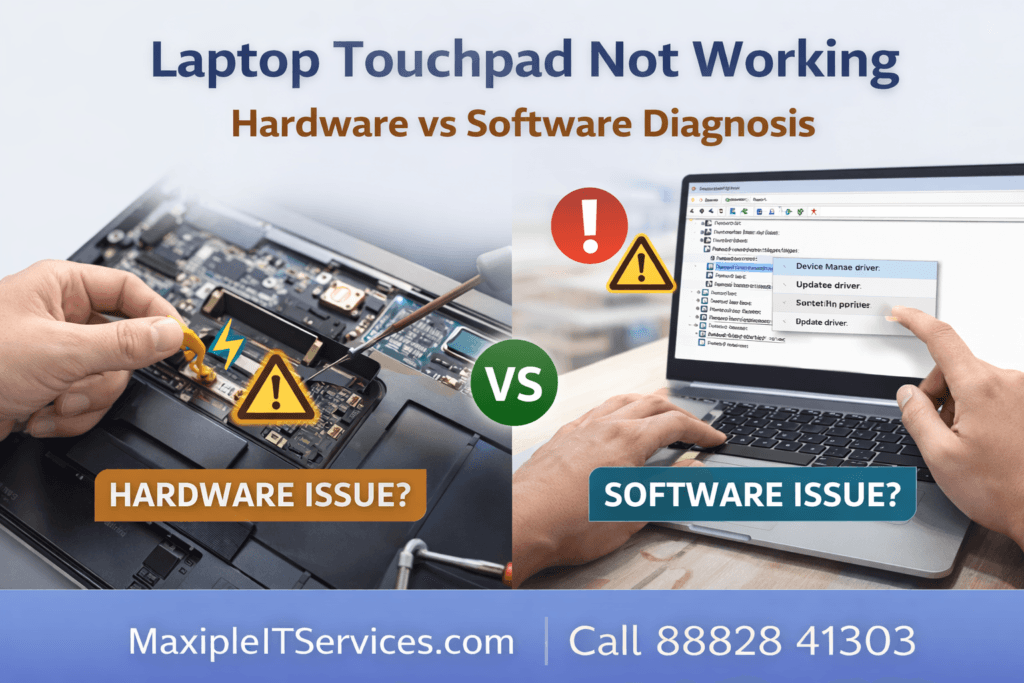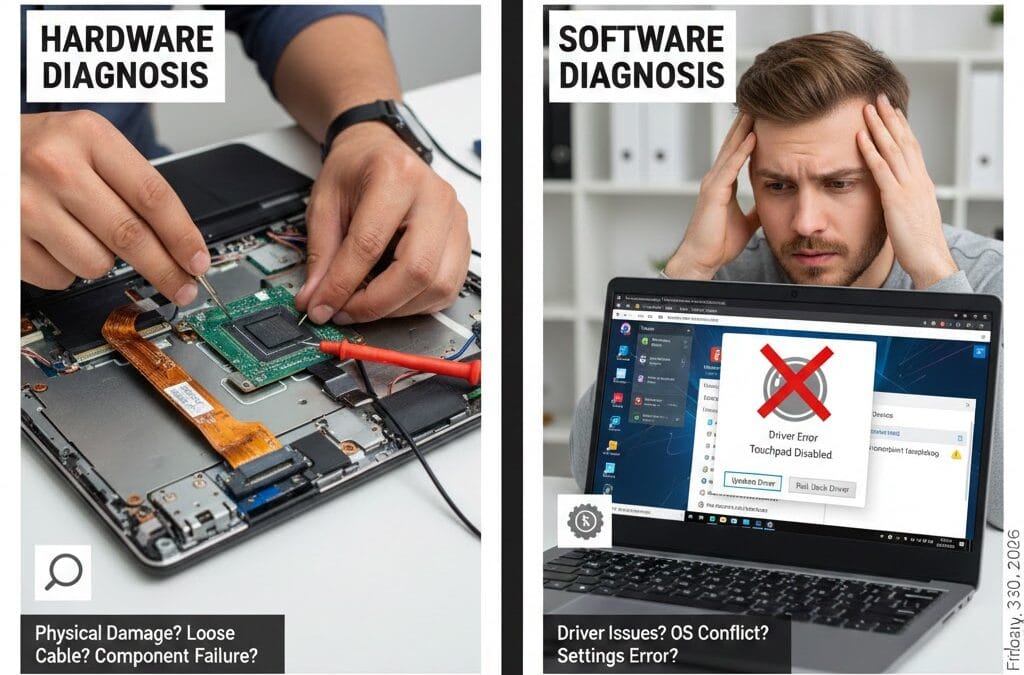
A laptop touchpad not working is one of the most common yet confusing problems laptop users face. When the touchpad suddenly stops responding, it can seriously affect productivity and usability. The real challenge is identifying whether the laptop touchpad not working issue is caused by a software problem or a hardware fault.
In this detailed guide, we explain laptop touchpad not working: hardware vs software diagnosis step by step, so you understand the exact cause and the correct solution.
If you need expert help, Maxiple IT Services provides professional laptop repair for all brands.
🌐 Website: https://maxipleitservices.com/
📞 Call Now: 88828 41303
What Does Laptop Touchpad Not Working Mean?
When a laptop touchpad not working issue occurs, you may notice:
Cursor not moving
Touchpad clicks not responding
Touchpad works intermittently
Multi-touch gestures not functioning
Touchpad disabled automatically
The root cause usually falls into two categories:
Software-related issues
Hardware-related issues
Understanding this difference is crucial for accurate repair.
Laptop Touchpad Not Working: Software Diagnosis
In many cases, a laptop touchpad not working problem is caused by software misconfiguration or driver errors rather than physical damage.
1. Touchpad Disabled in Settings
Sometimes the touchpad is accidentally disabled.
How to check:
Go to Settings → Devices → Touchpad
Make sure the touchpad is turned ON
Check if an external mouse disables the touchpad
This is a very common reason for a laptop touchpad not working issue.
2. Outdated or Corrupted Touchpad Driver
A corrupted driver is one of the biggest causes of laptop touchpad not working problems.
Fix:
Open Device Manager
Expand Mice and other pointing devices
Right-click the touchpad driver
Select Update driver
Restart the laptop
If updating fails, uninstall the driver and restart.
3. Windows Update or OS Conflict
After system updates, users often report laptop touchpad not working.
Solution:
Roll back recent Windows updates
Reinstall manufacturer-specific drivers (Synaptics, ELAN, Precision)
4. BIOS or Firmware Settings Issue
Some laptops disable the touchpad from BIOS.
Fix:
Restart and enter BIOS (F2 / DEL / ESC)
Enable Internal Pointing Device
Save and restart
5. Third-Party Software Conflict
Touchpad gestures may stop due to:
Antivirus conflicts
Touchpad utility crashes
Background optimization software
This type of laptop touchpad not working issue is purely software-based.
Laptop Touchpad Not Working: Hardware Diagnosis
If software solutions fail, the issue is likely hardware-related. Hardware diagnosis requires technical expertise.
1. Loose or Damaged Touchpad Flex Cable
The touchpad connects to the motherboard via a thin flex cable.
Symptoms:
Touchpad works only when pressed
Cursor moves randomly
Touchpad stops after opening/closing lid
This is a common laptop touchpad not working hardware issue.
2. Touchpad Surface Damage
Physical damage due to:
Liquid spills
Excessive pressure
Manufacturing defects
In such cases, touchpad replacement is required.
3. Motherboard Touchpad Controller Failure
Advanced laptops use dedicated controllers.
Signs:
Touchpad not detected in BIOS
No driver shows in Device Manager
Touchpad completely dead
This type of laptop touchpad not working problem requires motherboard-level repair.
4. Liquid Damage Issues
Liquid damage causes corrosion under the touchpad area.
Effects:
Intermittent response
False clicks
Complete failure
Professional cleaning or component repair is required.
How to Identify Hardware vs Software Issue
Use this simple method:
| Condition | Likely Cause |
|---|---|
| Touchpad works in BIOS | Software issue |
| Touchpad not detected in BIOS | Hardware issue |
| External mouse works fine | Touchpad specific |
| Driver missing | Software |
| Cable damaged | Hardware |
This diagnostic method helps pinpoint why your laptop touchpad not working.
When to Seek Professional Help
You should contact a technician if:
Touchpad not detected anywhere
Laptop recently dropped or spilled
Driver reinstall doesn’t work
Touchpad replacement needed
At Maxiple IT Services, we specialize in laptop touchpad diagnosis and repair.
🌐 https://maxipleitservices.com/
📞 88828 41303
Why Choose Maxiple IT Services?
We offer:
Expert hardware & software diagnosis
Touchpad replacement for all brands
Motherboard-level repairs
Fast turnaround time
Affordable pricing
We repair laptops from HP, Dell, Lenovo, Acer, Asus, Apple, MSI, and more.
Preventing Touchpad Issues in Future
To avoid laptop touchpad not working problems:
Keep drivers updated
Avoid liquid exposure
Use laptop on flat surfaces
Don’t apply excessive pressure
Perform regular system maintenance
Conclusion
A laptop touchpad not working issue can be caused by either software errors or hardware damage. Proper hardware vs software diagnosis saves time, money, and prevents unnecessary replacements.
If you’re unsure or need professional assistance, trust Maxiple IT Services for reliable laptop repair.
🌐 https://maxipleitservices.com/
📞 Call 88828 41303 today and get your laptop touchpad working like new.