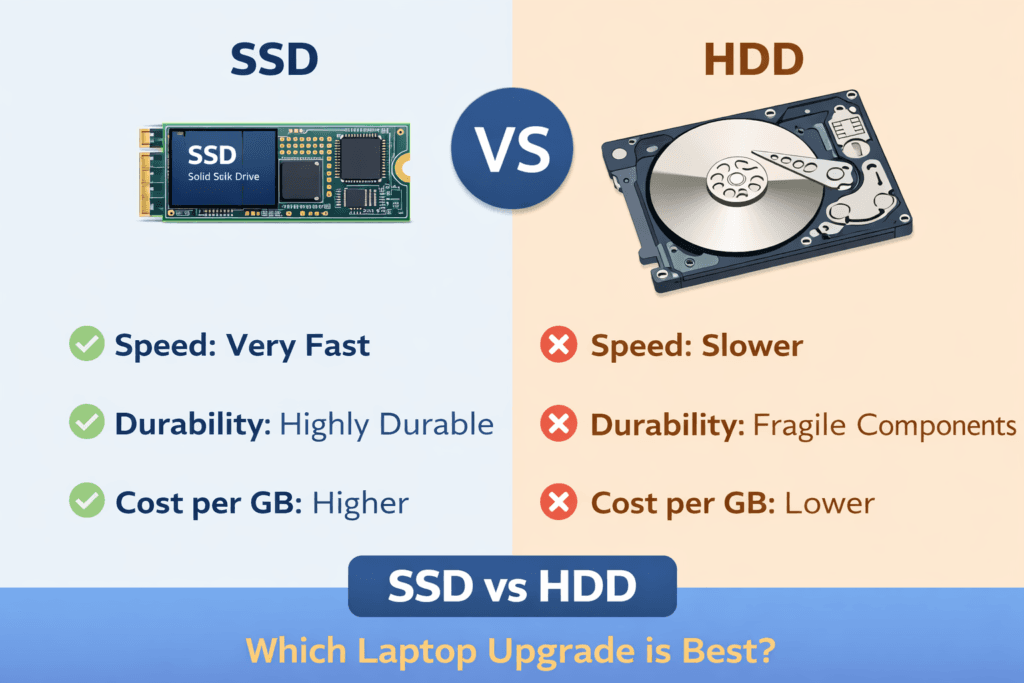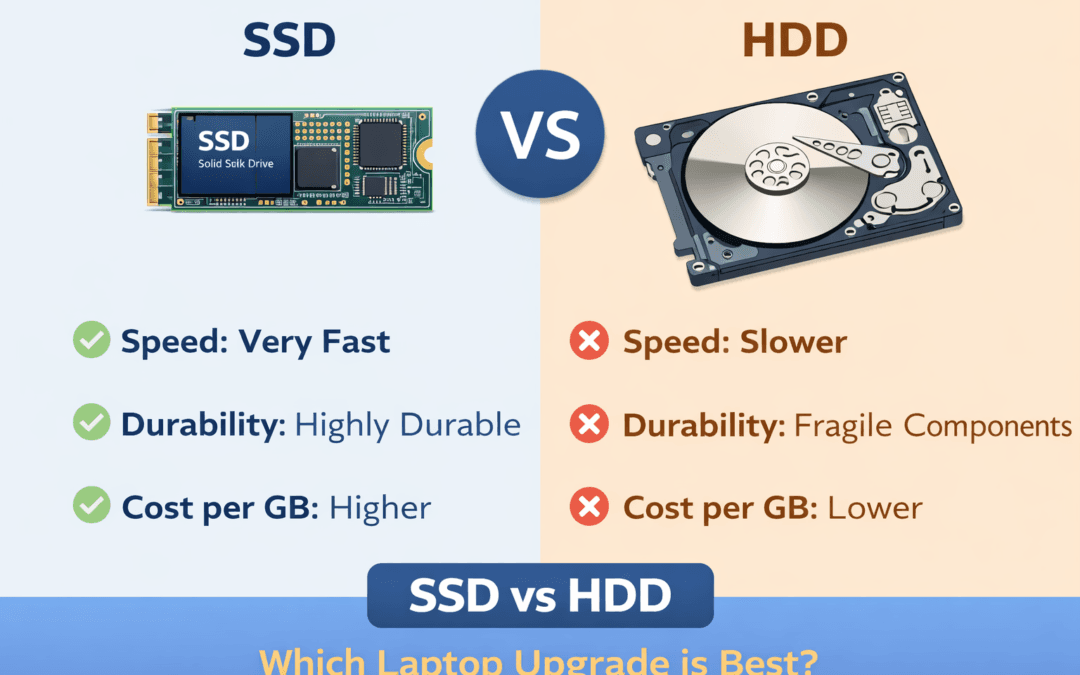
Upgrading your laptop storage is one of the most effective ways to boost performance, but many users are unsure whether to choose an SSD vs HDD. Each option has its advantages and drawbacks, and the right choice depends on your usage, budget, and performance expectations. In this detailed guide, we’ll explore everything you need to know about SSD vs HDD, helping you make an informed decision.
If you need professional installation or upgrade services, Maxiple IT Services can help. Call 88828 41303 today for expert laptop storage solutions.
What is an HDD? Understanding Hard Disk Drives
A hard disk drive (HDD) is the traditional storage device used in laptops for decades. HDDs store data on spinning magnetic disks called platters. The read/write heads access data by physically moving across these platters.
Key Features of HDDs:
Large Storage Capacity: HDDs typically range from 500GB to 4TB or more.
Cost-Effective: You get more storage per dollar compared to SSDs.
Mechanical Design: Moving parts make it prone to wear and slower speeds.
HDDs are great if you need high-capacity storage at a lower cost, but their slower speed can impact overall laptop performance. Booting, file transfer, and loading applications take longer compared to SSDs.
What is an SSD? Understanding Solid State Drives
A solid-state drive (SSD) is a modern storage solution that uses flash memory instead of spinning disks. SSDs have no moving parts, which makes them faster, quieter, and more reliable than traditional HDDs.
Key Features of SSDs:
Fast Boot and Load Times: SSDs can drastically reduce boot times from minutes to seconds.
Durability: No moving parts means less risk of damage from drops or shocks.
Low Power Consumption: Ideal for laptops to improve battery life.
With an SSD upgrade, your laptop becomes significantly more responsive. Tasks like opening applications, transferring files, and gaming are much smoother.
SSD vs HDD: Key Performance Differences
When comparing SSD vs HDD, performance is the most critical factor. Here’s a detailed look:
| Feature | HDD | SSD |
|---|---|---|
| Read/Write Speed | 80–160 MB/s | 500–3500 MB/s |
| Boot Time | 2–5 minutes | 10–30 seconds |
| Durability | Prone to mechanical failure | Highly durable |
| Noise | Spinning noise | Silent |
| Price per GB | Low | High |
Clearly, SSDs outperform HDDs in speed, durability, and noise levels, making them ideal for users who value performance over cost.
Why SSD vs HDD Matters for Laptop Performance
If your laptop is slow to boot, lagging while multitasking, or struggling to open large files, the storage type might be the culprit. Upgrading from an HDD to an SSD can:
Reduce boot times significantly
Improve application launch speed
Enhance gaming and video editing performance
Make overall system responsiveness faster
Even if you have an HDD with 1TB of storage, your laptop will feel sluggish compared to a smaller SSD.
SSD vs HDD for Different Users
Choosing between SSD vs HDD depends on how you use your laptop:
1. Casual Users
If you mostly browse the web, watch videos, or work on documents, an HDD may suffice. You’ll get more storage for your money.
2. Professionals & Gamers
For video editing, gaming, or programming, an SSD is a must. It offers fast file access, quick boot times, and smoother multitasking.
3. Data-Heavy Users
If you store a lot of photos, videos, or large files, consider a combination:
SSD for the operating system and applications
HDD for bulk storage
This hybrid setup provides both speed and large storage at a reasonable cost.
Types of SSDs and HDDs
Not all SSDs and HDDs are the same. Understanding the types helps you choose the best for your laptop:
SSD Types:
SATA SSD: Affordable, decent speed, compatible with most laptops.
NVMe SSD: High-speed performance, ideal for gaming and professional work.
M.2 SSD: Compact, fast, and fits in modern slim laptops.
HDD Types:
2.5-inch Laptop HDD: Standard for laptops, slower than SSD but cost-effective.
3.5-inch Desktop HDD: Usually for desktops or external storage.
How to Upgrade Your Laptop Storage
Upgrading to an SSD or replacing your HDD can revive your laptop performance. Here’s a simple guide:
Backup Your Data: Always secure your files before making changes.
Choose the Right Drive: Check laptop compatibility (SATA, NVMe, M.2).
Install the Drive: Carefully open your laptop and replace the old drive.
Install Operating System: Fresh OS installation ensures maximum performance.
Restore Data: Move files from your backup to the new drive.
For professional, hassle-free installation, Maxiple IT Services provides expert SSD/HDD upgrades. Call 88828 41303 for assistance.
SSD vs HDD: Cost Comparison
While SSDs are faster, they cost more per GB. Example pricing:
1TB HDD: ₹4,000–₹5,000
1TB SATA SSD: ₹7,000–₹8,500
1TB NVMe SSD: ₹9,500–₹12,000
If performance is your priority, the extra cost is worth it. For storage-heavy users on a budget, HDDs still make sense.
SSD vs HDD: Common Myths
Myth 1: SSDs wear out quickly.
Reality: Modern SSDs last years and are durable under normal use.Myth 2: HDDs are faster for large files.
Reality: SSDs outperform HDDs in almost all scenarios.Myth 3: Upgrading storage is complicated.
Reality: With professional help, SSD/HDD upgrades are quick and safe.
Conclusion: SSD vs HDD – Which Should You Choose?
If your laptop is slow, unresponsive, or struggling with modern applications, upgrading to an SSD is the best choice. HDDs still work for storage-heavy tasks but cannot match SSD performance.
For expert SSD and HDD upgrades, trust Maxiple IT Services. Our technicians ensure your laptop gets maximum speed and reliability. Call 88828 41303 today to schedule your upgrade.