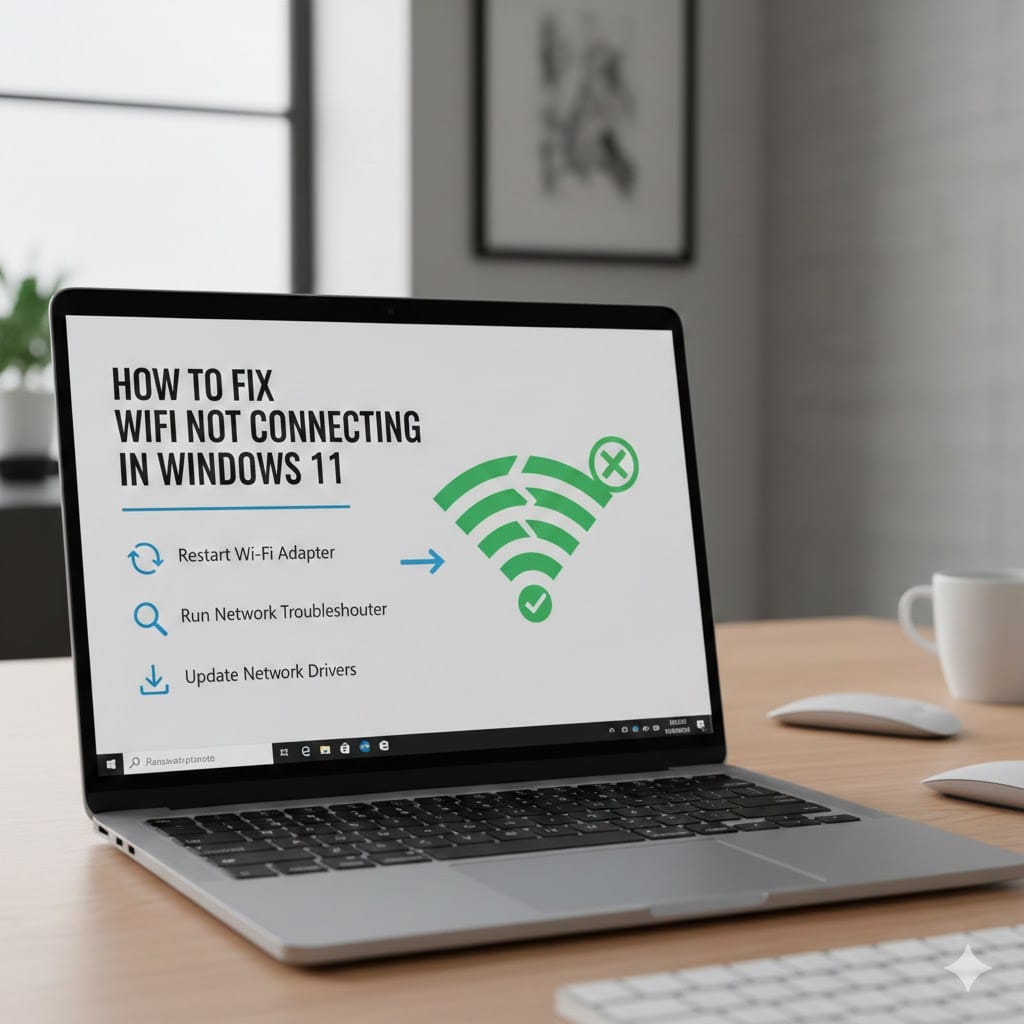
If you are struggling with WiFi not connecting Windows 11, you are not alone. Many users face sudden internet connection problems after updates, driver changes, or router issues. When your system shows no internet access or refuses to connect to a network, it can interrupt work, online meetings, and downloads. The good news is that most WiFi not connecting Windows 11 problems are related to simple configuration errors or outdated drivers. In this complete guide, we will explain step-by-step solutions to restore your internet connection quickly. If the issue continues, professional support from Maxiple IT Services can resolve it efficiently.
Common Causes of WiFi Not Connecting Windows 11
Understanding the root cause of WiFi not connecting Windows 11 helps you apply the correct solution quickly. Connectivity problems usually stem from software conflicts or hardware malfunctions.
Sometimes, Windows updates modify network settings automatically. These changes may disable the wireless adapter without informing the user.
Outdated or corrupted WiFi drivers can also prevent proper communication between your laptop and router. When drivers malfunction, the system cannot detect available networks correctly.
Router configuration errors, incorrect passwords, or weak signal strength may also cause frequent disconnections.
Network Adapter Issues Behind WiFi Not Connecting Windows 11
A disabled network adapter often triggers the WiFi not connecting Windows 11 error. This can happen accidentally through system settings or power management options.
Press Windows + X and open Device Manager. Expand the Network Adapters section carefully and check if your wireless adapter is enabled.
If it appears disabled, right-click and select Enable. Restart your laptop and try connecting again.
Restart Devices to Fix WiFi Not Connecting Windows 11
One of the simplest ways to resolve WiFi not connecting Windows 11 is restarting both your laptop and router. Temporary glitches often disappear after a proper reboot.
Turn off your computer completely instead of choosing restart. Wait for at least two minutes before powering it back on.
Next, unplug your router and modem from the power source. Allow them to remain off for about five minutes.
Reconnect the router and wait until all indicator lights stabilize. Then attempt to reconnect your system to the WiFi network.
Use Windows Network Troubleshooter
The built-in troubleshooter can automatically detect causes of WiFi not connecting Windows 11 issues. It scans configuration errors and applies suitable fixes instantly.
Open Settings and navigate to System, then Troubleshoot. Select Other troubleshooters and run the Internet Connections option.
Follow the on-screen instructions and allow Windows to diagnose the problem fully.
Update Drivers for WiFi Not Connecting Windows 11
Outdated drivers are a major reason behind WiFi not connecting Windows 11 errors. Driver updates ensure compatibility with the latest Windows security patches.
Open Device Manager and locate your wireless network adapter. Right-click and choose Update driver from the menu.
Select the automatic search option to allow Windows to find updated driver software. After installation, restart your computer and test the connection.
If automatic updates fail, uninstall the network adapter driver completely. Restart the laptop so Windows reinstalls the correct version automatically.
Reset Network Settings for WiFi Not Connecting Windows 11
If the issue persists, performing a network reset may fix WiFi not connecting Windows 11 permanently. This process removes all saved network configurations.
Go to Settings and select Network & Internet. Scroll down and click Advanced network settings.
Choose Network reset and confirm your action. After restarting, reconnect to your WiFi by entering the correct password.
Check Router Settings When WiFi Not Connecting Windows 11
Sometimes the WiFi not connecting Windows 11 problem originates from router configuration errors. Router firmware updates may also impact connectivity.
Access your router settings through a web browser using the default gateway address. Verify that wireless broadcasting is enabled properly.
Ensure the SSID is visible and security settings are compatible with Windows 11. WPA2 or WPA3 encryption is recommended for stable connectivity.
You should also check whether multiple devices are overloading the router bandwidth.
Forget and Reconnect Network
If your system refuses to connect, forgetting the saved network may resolve WiFi not connecting Windows 11 quickly.
Open WiFi settings and select Manage known networks. Choose your current network and click Forget.
Reconnect manually by entering the correct password again. This step refreshes network credentials completely.
Disable Airplane Mode and Power Saving Options
Airplane mode often causes the WiFi not connecting Windows 11 error unexpectedly. Ensure that this feature is turned off completely.
Open Quick Settings from the taskbar and verify Airplane mode status. If enabled, disable it immediately.
Additionally, power management settings sometimes disable WiFi adapters to save battery.
Adjust Power Management for WiFi Not Connecting Windows 11
Open Device Manager and double-click your wireless adapter. Navigate to the Power Management tab carefully.
Uncheck the option that allows the computer to turn off this device to save power. Restart your laptop and test your internet connection again.
Run Command Prompt Fix for WiFi Not Connecting Windows 11
Advanced users can apply command line solutions to repair WiFi not connecting Windows 11 issues effectively.
Open Command Prompt as administrator from the Start menu. Type the following commands one by one and press Enter after each:
ipconfig /release
ipconfig /renew
ipconfig /flushdns
netsh winsock reset
After executing these commands, restart your computer. These commands reset network configurations and refresh IP addresses.
When to Seek Professional Help for WiFi Not Connecting Windows 11
If none of the above methods solve the WiFi not connecting Windows 11 problem, hardware failure may be involved. Internal WiFi cards sometimes stop functioning due to overheating or physical damage.
Motherboard network chip issues require expert diagnosis and specialized tools. Attempting DIY repairs may worsen the problem further.
At Maxiple IT Services, we provide complete Windows 11 network troubleshooting and repair solutions. Our technicians quickly identify whether the issue relates to software or hardware components.
Visit our website:
👉 https://maxipleitservices.com/
Call us today at 8882841303 for fast and reliable laptop repair support.
Why Choose Maxiple IT Services?
We offer professional laptop and computer repair services at affordable prices. Our experienced team handles all Windows 11 connectivity issues efficiently.
We ensure transparent pricing and quick turnaround time for every repair request.
Prevent Future WiFi Not Connecting Windows 11 Issues
Preventive maintenance reduces the chances of facing WiFi not connecting Windows 11 repeatedly.
Keep your Windows operating system updated regularly. Install network driver updates directly from trusted sources only.
Avoid downloading suspicious software that may interfere with network settings.
Place your router in a central location for stronger signal coverage. Regularly restart networking equipment to maintain performance stability.
Conclusion
Facing a WiFi not connecting Windows 11 issue can disrupt work, entertainment, and communication. Fortunately, most problems arise from minor driver errors, incorrect settings, or router glitches. By following the troubleshooting steps outlined in this guide, you can restore your internet connection quickly and safely. However, if the problem persists due to hardware failure or complex system errors, professional assistance becomes necessary.
For expert repair and network troubleshooting, contact Maxiple IT Services today at 8882841303 or visit https://maxipleitservices.com/. Our team is ready to resolve your Windows 11 WiFi issues efficiently and affordably.