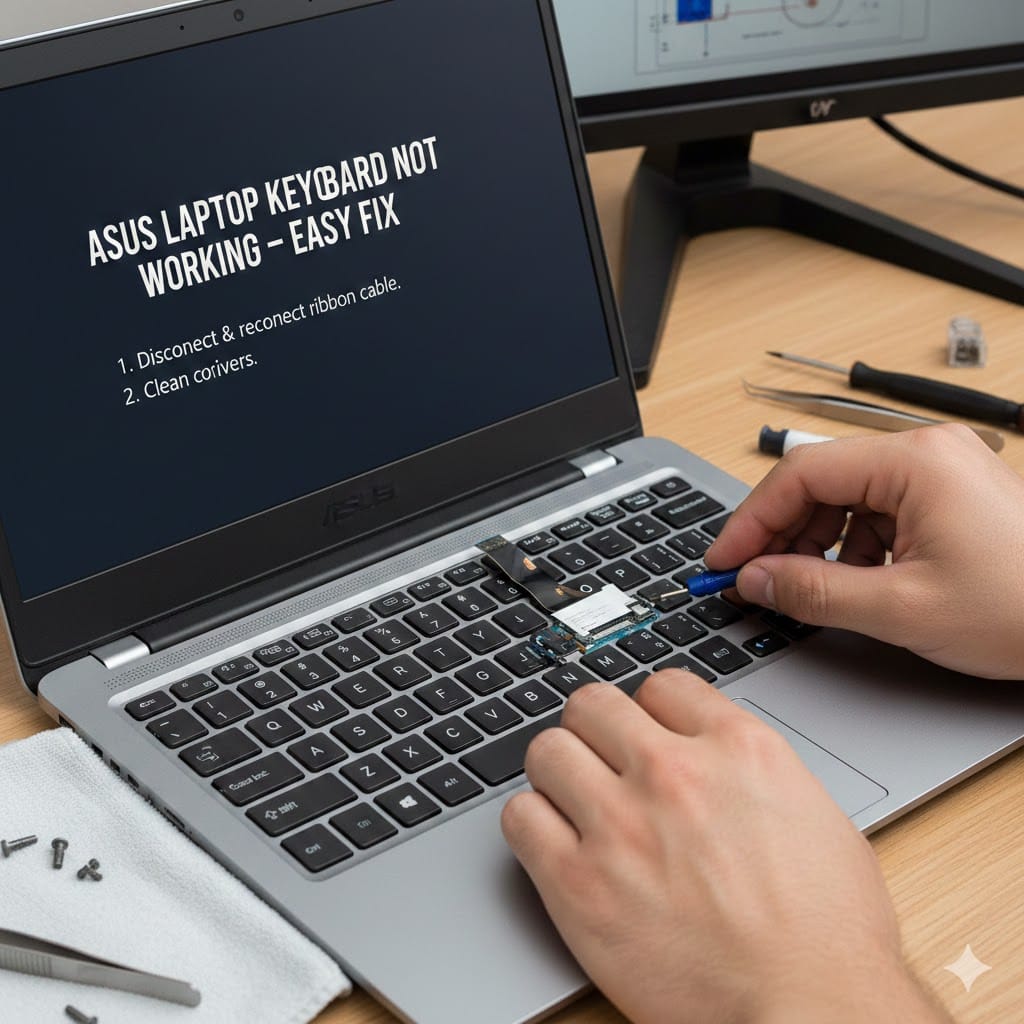
If your ASUS laptop keyboard not working issue suddenly appears, it can disrupt your daily work and productivity. Many users experience this problem due to software glitches, outdated drivers, dust accumulation, or internal hardware faults. The good news is that most ASUS keyboard issues can be resolved without replacing the entire laptop. In this detailed guide, we will explain the common causes, step-by-step solutions, and when you should seek professional repair support. If your ASUS laptop keyboard not working problem continues after basic troubleshooting, expert assistance from Maxiple IT Services can help restore your device quickly and safely.
Common Reasons for ASUS Laptop Keyboard Not Working
Understanding the cause of the ASUS laptop keyboard not working problem helps you apply the correct fix. Keyboard failure can be related to either software or hardware issues.
Sometimes, a temporary system glitch prevents the keyboard from responding properly. A simple restart can often resolve this unexpected error.
Outdated or corrupted keyboard drivers are another frequent cause. When drivers fail to communicate with the operating system, the keyboard may stop working completely.
Physical damage, liquid spills, or accumulated dust can also block key connections internally. In such cases, cleaning or hardware repair becomes necessary.
Software Glitches Causing ASUS Laptop Keyboard Not Working
Software conflicts commonly trigger the ASUS laptop keyboard not working situation. Windows updates sometimes change system settings that affect keyboard functionality.
Incorrect keyboard settings, such as filter keys or language configuration, may disable normal typing behavior.
Malware infections can also interfere with system drivers, leading to keyboard failure.
Quick Restart Fix for ASUS Laptop Keyboard Not Working
Before trying complex solutions, restart your laptop completely. This simple step often fixes the ASUS laptop keyboard not working issue within minutes.
First, shut down the laptop instead of choosing restart. Wait at least two minutes before turning it back on.
Disconnect all external devices, including USB keyboards or mouse accessories. External hardware can sometimes conflict with built-in keyboard drivers.
After rebooting, test the keyboard carefully in a text editor. If the issue disappears, it was likely a temporary system glitch.
Perform a Hard Reset
A hard reset can resolve persistent ASUS laptop keyboard not working problems caused by power management errors.
Turn off the laptop and remove the charger completely. If your battery is removable, take it out carefully.
Press and hold the power button for thirty seconds. This process drains residual electricity from internal components.
Reconnect the battery and charger, then power on your laptop normally.
Update Drivers to Fix ASUS Laptop Keyboard Not Working
Driver updates are one of the most effective solutions for the ASUS laptop keyboard not working error. Corrupted or outdated drivers often block communication between hardware and Windows.
Open Device Manager from the Start menu. Locate the keyboard section and expand it carefully.
Right-click on your keyboard driver and select “Update driver.” Choose the automatic search option for updated software.
If the update does not work, uninstall the driver completely. Restart your laptop and allow Windows to reinstall the correct version automatically.
Reinstall Keyboard Drivers Manually
If automatic updates fail, manually reinstalling drivers can resolve the ASUS laptop keyboard not working condition.
Visit the official ASUS support website from another device if necessary. Download the latest keyboard or chipset drivers compatible with your laptop model.
Transfer the files using a USB drive and install them carefully. Restart the system once installation completes successfully.
Check Keyboard Settings When ASUS Laptop Keyboard Not Working
Incorrect system settings sometimes cause the ASUS laptop keyboard not working problem without any hardware damage.
Open Windows Settings and navigate to Accessibility options. Make sure Filter Keys and Sticky Keys are turned off.
Next, verify the correct keyboard layout under Language settings. Choosing the wrong region may cause certain keys to appear nonfunctional.
You should also run the Windows keyboard troubleshooter. This built-in tool can automatically detect and fix minor configuration issues.
Disable Fast Startup Feature
Fast Startup occasionally triggers the ASUS laptop keyboard not working issue after system updates.
Go to Control Panel and open Power Options. Click on “Choose what the power buttons do.”
Disable the Fast Startup feature and save changes. Restart your laptop and test the keyboard again.
Clean Dust if ASUS Laptop Keyboard Not Working
Physical cleaning is essential when the ASUS laptop keyboard not working issue is caused by dust or debris.
Turn off your laptop before cleaning. Use compressed air to blow dust out from between the keys gently.
Avoid inserting sharp objects under the keys because they may damage internal components.
If liquid spilled on the keyboard earlier, internal circuits may be affected. In such cases, professional inspection becomes necessary.
Signs of Hardware Damage
If only certain keys stop responding, hardware failure may be the cause. A damaged keyboard ribbon cable can also create typing problems.
Repeated exposure to moisture increases the risk of corrosion inside the keyboard assembly.
When cleaning does not restore functionality, replacement may be required.
When to Seek Professional Help for ASUS Laptop Keyboard Not Working
If every solution fails, professional repair is the safest option for your ASUS laptop keyboard not working problem.
Internal motherboard issues sometimes prevent keyboard signals from reaching the processor. These repairs require specialized tools and experience.
Replacing an ASUS keyboard requires careful disassembly to avoid screen or motherboard damage.
At Maxiple IT Services, our technicians diagnose the exact reason behind your keyboard failure. We provide affordable and quick repair solutions for all ASUS laptop models.
You can visit our website:
👉 https://maxipleitservices.com/
Or call us directly at 8882841303 for immediate assistance.
Why Choose Maxiple IT Services?
We provide reliable laptop repair services with genuine spare parts. Our team ensures safe handling of sensitive internal components.
We offer fast turnaround times so your work does not suffer long delays.
Customer satisfaction and transparent pricing remain our top priorities.
Prevent Future ASUS Laptop Keyboard Not Working Issues
Preventive maintenance reduces the chance of facing the ASUS laptop keyboard not working issue again.
Keep food and liquids away from your laptop during usage. Accidental spills are one of the biggest causes of keyboard failure.
Clean your keyboard regularly using compressed air to prevent dust accumulation.
Always update Windows and drivers carefully to avoid compatibility issues.
Consider using an external keyboard temporarily if you notice early warning signs. Acting quickly prevents further internal damage.
Conclusion
Experiencing an ASUS laptop keyboard not working problem can be frustrating, especially during important tasks. Fortunately, most keyboard issues result from minor software glitches, driver errors, or dust buildup. By following the troubleshooting steps outlined above, you can often restore full functionality without expensive repairs. However, if the problem persists due to hardware damage or motherboard faults, professional repair becomes necessary.
For expert diagnosis and reliable service, contact Maxiple IT Services today at 8882841303 or visit https://maxipleitservices.com/. Our experienced technicians are ready to solve your ASUS laptop issues quickly and affordably.