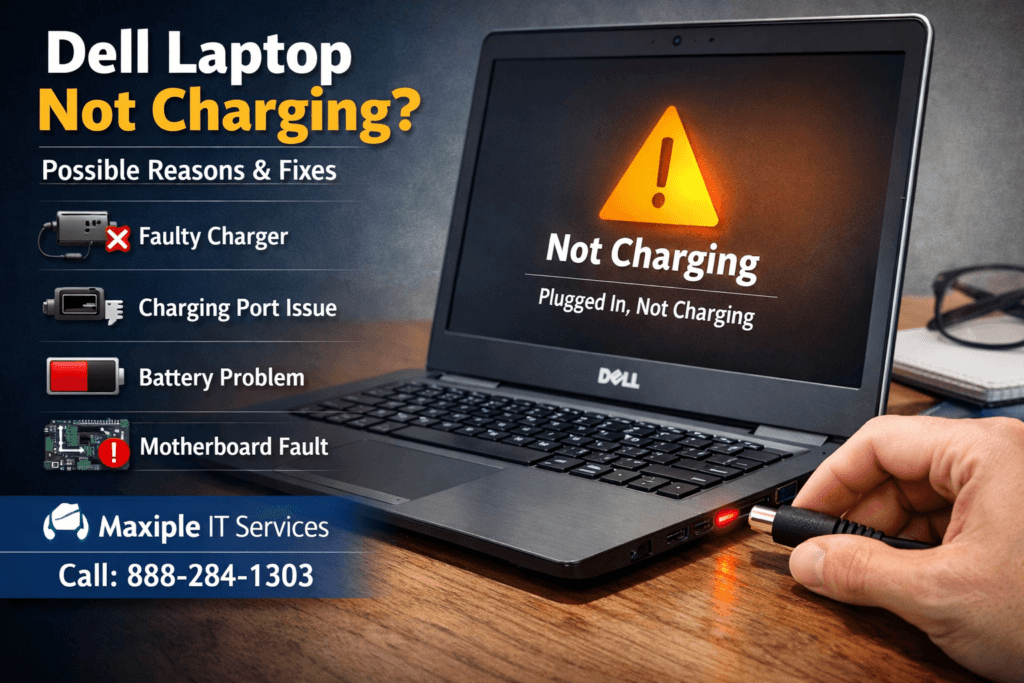
If your Dell Laptop Not Charging problem suddenly appears, it can disrupt work, studies, and daily tasks. Many users of Dell Technologies devices face charging issues caused by hardware faults, software glitches, or power supply problems. Sometimes, the issue may be minor, such as a loose cable, while other times it may involve battery failure or motherboard defects. Understanding the root cause helps you apply the right solution quickly. This guide explains the most common causes and fixes in simple terms. If your laptop still refuses to charge after troubleshooting, professional assistance from Maxiple IT Services can help restore your laptop safely and efficiently.
Common Causes of Dell Laptop Not Charging
A Dell laptop may stop charging due to several hardware or software-related issues. Identifying the exact cause helps prevent unnecessary replacements or repairs.
Faulty Charger Causing Dell Laptop Not Charging
One of the most common reasons is a damaged or incompatible charger. Chargers can wear out over time due to bending, overheating, or internal wire damage. If the charger fails to deliver proper voltage, your laptop battery will not charge properly.
Using a non-original charger can also cause charging failure. Dell laptops require specific wattage adapters. An incompatible charger may power the laptop but fail to charge the battery fully or safely.
Charging Port Damage and Dell Laptop Not Charging
The charging port connects your adapter to the internal charging circuit. Dust accumulation, loose connections, or physical damage can prevent proper charging. If the charger feels loose or only works at certain angles, the port may be damaged.
Charging port damage often happens due to frequent plugging and unplugging. Over time, internal connectors weaken and fail to maintain stable power flow.
Battery Wear Leading to Dell Laptop Not Charging
Laptop batteries degrade naturally over time. After several years of use, the battery capacity decreases significantly. When the battery reaches its end-of-life stage, it may stop charging completely.
If your laptop battery drains quickly or refuses to charge beyond a certain percentage, battery wear is likely the cause.
How to Fix Dell Laptop Not Charging Problem
You can try several troubleshooting steps to fix this issue before seeking professional repair services.
Check Power Supply When Dell Laptop Not Charging
Start by checking the power outlet and ensuring it works correctly. Plug another device into the same outlet to confirm power availability. Sometimes, faulty extension boards or loose power sockets cause charging issues.
Also, ensure the charger is properly connected to both the laptop and wall outlet. Even slightly loose connections can interrupt charging.
Inspect Charger and Cable Condition
Carefully inspect your charger for visible damage. Look for frayed wires, burn marks, or bent connectors. Damaged chargers should be replaced immediately to avoid further hardware damage.
Always use an original Dell charger with the correct voltage rating. This ensures safe and efficient charging performance.
Restart and Reset the Laptop
Sometimes software glitches prevent proper charging detection. Restart your laptop and check if the charging resumes. You can also perform a power reset by following these steps:
Turn off the laptop completely
Remove the charger and battery (if removable)
Press and hold the power button for 20 seconds
Reconnect the battery and charger
Turn on the laptop
This reset clears temporary system errors affecting charging.
Hardware Issues Behind Dell Laptop Not Charging
If basic troubleshooting does not fix the problem, hardware failure may be responsible.
Motherboard Charging Circuit Failure
The motherboard contains circuits that control battery charging. Damage to these circuits can prevent charging completely. Electrical surges, overheating, or aging components can cause motherboard failure.
Motherboard repairs require professional diagnosis and specialized tools. Attempting DIY motherboard repair can cause further damage.
Loose Internal Battery Connection
Sometimes the battery connector inside the laptop becomes loose. This prevents proper communication between the battery and charging system. As a result, the laptop shows “plugged in, not charging” message.
Internal inspection and reconnection may resolve this problem. However, professional handling is recommended for safety.
Overheating and Thermal Protection
Dell laptops include thermal protection systems that stop charging if overheating occurs. Excessive heat can damage internal components and battery health.
Dust buildup inside cooling fans and vents often causes overheating. Cleaning internal components improves airflow and charging performance.
Software-Related Dell Laptop Not Charging Problems
Software and firmware issues can also prevent proper battery charging.
Outdated BIOS and Drivers
The BIOS controls hardware communication, including battery charging. Outdated BIOS versions may cause charging detection problems. Updating BIOS from the official Dell website can resolve such issues.
Battery and chipset drivers also play an important role. Updating drivers ensures proper communication between hardware and operating system.
Incorrect Power Settings
Power management settings may limit battery charging to extend battery life. Some Dell laptops include adaptive charging settings that stop charging at certain percentages.
Check battery settings and disable adaptive charging if necessary.
Operating System Glitches
Sometimes Windows operating system errors interfere with charging detection. Updating Windows or reinstalling battery drivers can fix this problem.
You can reinstall battery drivers using Device Manager:
Open Device Manager
Expand Batteries section
Uninstall battery drivers
Restart laptop to reinstall drivers automatically
Signs You Need Dell Laptop Not Charging Repair Service
If troubleshooting fails, professional repair becomes necessary. Ignoring charging issues can cause permanent laptop damage.
Battery Not Detected by System
If your laptop shows “No battery detected,” it indicates battery failure or connection issues. Battery replacement or connector repair may be required.
This problem cannot be fixed through software troubleshooting alone.
Laptop Only Works When Plugged In
If your laptop turns off immediately after unplugging, the battery is no longer functioning properly. This means the battery cannot store power anymore.
Battery replacement is the only permanent solution in this situation.
Charging Stops Intermittently
Intermittent charging indicates loose connections, damaged ports, or failing charging circuits. Professional inspection ensures accurate diagnosis.
Delaying repairs may cause further hardware damage and increased repair costs.
Preventing Dell Laptop Not Charging Issues
Proper maintenance can extend battery life and prevent charging problems.
Use Original Charger Always
Original chargers provide correct voltage and protect your laptop from electrical damage. Cheap chargers may damage battery and motherboard components.
Always purchase genuine Dell chargers from trusted sources.
Avoid Overcharging and Overheating
Avoid keeping your laptop plugged in continuously after full charge. Excessive charging cycles reduce battery lifespan over time.
Keep your laptop in cool environments and ensure proper ventilation.
Clean Charging Port and Cooling Vents
Dust accumulation affects both charging and cooling performance. Regular cleaning prevents overheating and connection problems.
Use compressed air or professional cleaning services for safe maintenance.
Professional Dell Laptop Not Charging Repair Support
If your Dell laptop still does not charge, professional repair ensures safe and reliable solutions. Expert technicians diagnose the exact cause using advanced tools and experience.
Maxiple IT Services provides reliable Dell laptop repair services, including battery replacement, charging port repair, motherboard repair, and charger replacement. Their trained technicians ensure accurate diagnosis and quick repair.
You can contact Maxiple IT Services for expert help:
Website: https://maxipleitservices.com/
Phone Number: 8882841303
Professional repair prevents further damage and restores your laptop performance quickly.
Conclusion
The Dell Laptop Not Charging issue can result from charger problems, battery failure, motherboard faults, or software glitches. Basic troubleshooting like checking charger, updating drivers, and resetting the laptop often resolves minor issues. However, hardware problems require professional diagnosis and repair.
Regular maintenance, proper charging habits, and using genuine accessories help prevent charging problems. If your laptop still refuses to charge, contacting professional repair experts like Maxiple IT Services ensures safe and reliable repair solutions. Early repair prevents costly damage and extends your laptop lifespan.