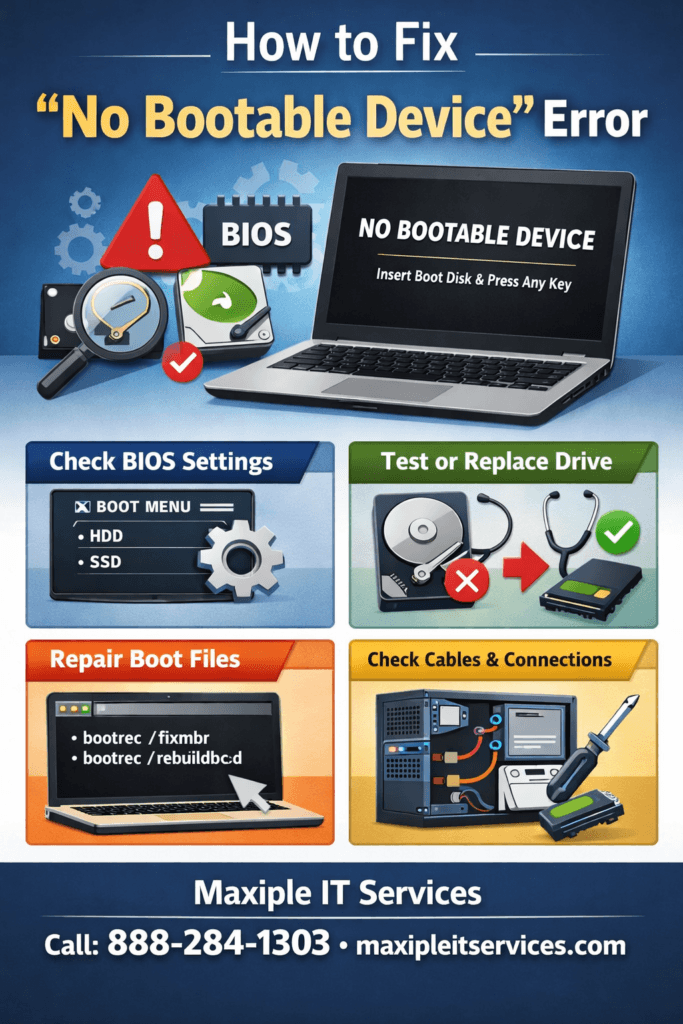
The No Bootable Device Error is one of the most frustrating problems a laptop or desktop user can face. This error usually appears when the system cannot find a bootable operating system during startup. It often shows as a black screen message stating “No bootable device found” or “Insert boot disk and press any key.” For many users, this issue can feel sudden and alarming, especially if important data is stored on the system.
The No Bootable Device Error can occur due to hardware failures, incorrect BIOS settings, corrupted system files, or loose internal connections. While the message looks serious, the good news is that it can often be fixed without replacing the entire system. Understanding the real cause is the first step toward a proper solution. In this guide, we will explain the causes, fixes, and when professional repair support is required.
What Is the No Bootable
The No Bootable Device Error means your computer is unable to locate a drive that contains a valid operating system. When you power on your system, the BIOS or UEFI checks connected drives for boot files. If it fails to find them, the error appears.
This problem can occur on laptops, desktops, and even brand-new systems. It does not always mean your hard drive is dead. In many cases, incorrect boot order settings or software corruption are responsible.
Common Error Messages You May See
No bootable device found
Boot device not found
Insert boot disk and press any key
No operating system found
Each message points to the same root issue: the system cannot boot correctly.
Common Causes of No Bootable
Understanding the cause helps in applying the correct fix. The No Bootable Device Error usually occurs due to one or more of the following reasons.
Incorrect Boot Order in BIOS
If the boot sequence is wrong, your system may try to boot from an empty drive. This is a very common issue after BIOS updates or resets.
Hard Drive or SSD Failure
A failing storage drive may stop responding, making the system unable to detect it. Physical damage or wear can cause this problem.
Corrupted Operating System Files
Sudden shutdowns, malware, or failed updates can corrupt boot files. This prevents Windows from loading properly.
Loose or Damaged Internal Cables
In desktop systems, loose SATA cables can disconnect the boot drive. Even slight movement can trigger this error.
Malware or Virus Attacks
Some viruses damage boot sectors, leading to the during startup.
How to Fix No Bootable Device Error Using BIOS Settings
BIOS settings are often the easiest place to start when fixing this issue.
Check Boot Order Settings
Restart your system and enter BIOS by pressing F2, F10, DEL, or ESC during startup. Locate the boot menu and ensure your primary hard drive or SSD is listed first.
Enable Boot Drive Detection
Sometimes the drive is disabled in BIOS settings. Make sure the storage device is enabled and properly detected.
Switch Boot Mode
Change boot mode between UEFI and Legacy, depending on how Windows was originally installed. Save changes and restart your system.
These steps alone fix the in many cases.
Fix No Bootable Device Error by Checking Hardware
If BIOS settings look fine, hardware inspection becomes necessary.
Check Hard Drive or SSD Connection
For desktops, power off the system and check SATA and power cables. Reseat them properly to ensure stable connections.
Test Drive Health
A failing drive may still appear in BIOS but fail during boot. Running a disk health check can confirm whether replacement is required.
Replace Faulty Storage Drive
If the drive is completely dead, replacement is the only solution. Data recovery may still be possible with professional tools.
Hardware-related issues are a major cause of the No Bootable Device Error, especially in older systems.
Repair Windows Boot Files to Fix No
Corrupted system files can be repaired using Windows recovery tools.
Use Automatic Startup Repair
Boot from a Windows installation USB and select “Repair your computer.” Choose Startup Repair and let Windows attempt automatic fixes.
Rebuild Boot Configuration Data
Using Command Prompt in recovery mode, commands like bootrec /fixmbr and bootrec /rebuildbcd can restore missing boot files.
System Restore Option
If the error appeared after an update, restoring to a previous system point can resolve the issue safely.
These methods are effective when the No Bootable Device Error is software-related.
When to Seek Professional Help for No Bootable Device Error
Sometimes DIY fixes are not enough, especially when hardware damage is involved.
Signs You Need Expert Repair
Drive not detected in BIOS
Clicking or grinding noise from hard drive
System shuts down suddenly during startup
Repeated boot failure even after repairs
In such cases, professional diagnosis prevents further damage and data loss.
Trusted Laptop and Computer Repair Service
At Maxiple IT Services, we specialize in resolving the quickly and safely. Our technicians diagnose both software and hardware issues using advanced tools.
📞 Call Now: 8882841303
🌐 Visit: https://maxipleitservices.com/
How to Prevent No Bootable Device Error in the Future
Prevention is always better than repair, especially when valuable data is involved.
Regular Data Backup
Always keep backups on external drives or cloud storage to avoid data loss during boot failures.
Avoid Sudden Power Shutdowns
Use a UPS or proper shutdown methods to prevent file system corruption.
Keep System Updated
Regular updates fix bugs and security issues that can damage boot files.
Monitor Drive Health
Periodic disk health checks help detect early signs of failure before a No Bootable Device Error occurs.
Final Thoughts on No Bootable Device Error
The No Bootable Device Error may look serious, but it is often repairable with the right approach. From BIOS settings to Windows repair tools and hardware checks, multiple solutions are available. Identifying the exact cause saves time, money, and unnecessary replacements.
If you are unsure or want guaranteed results, professional support is the safest option. Maxiple IT Services offers reliable laptop and computer repair solutions with quick turnaround times.
📞 Support Helpline: 8882841303
🌐 Website: https://maxipleitservices.com/