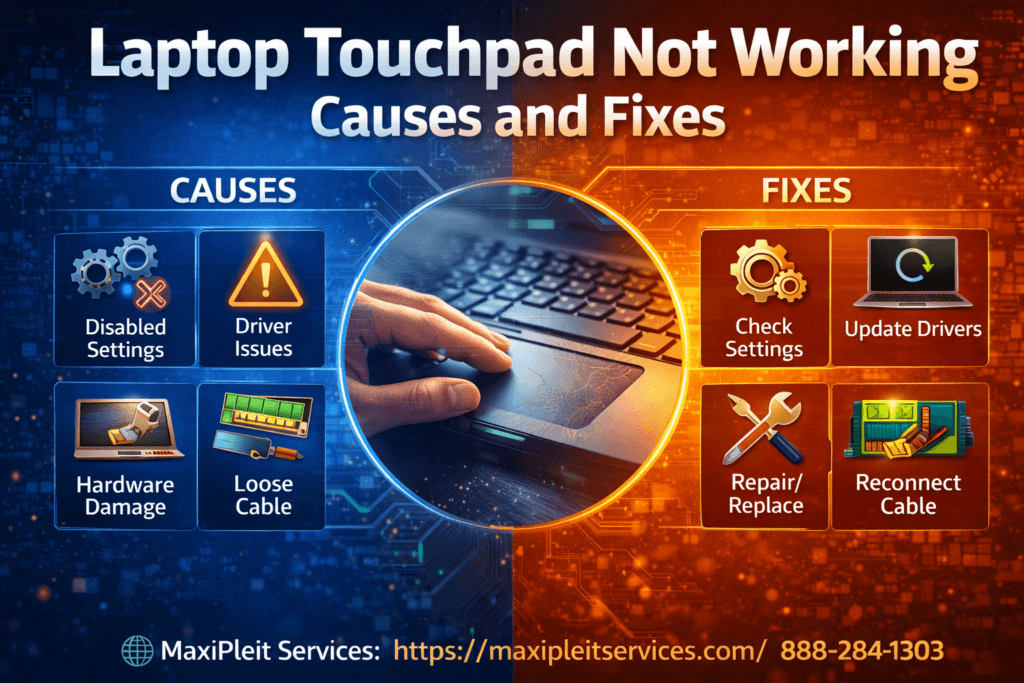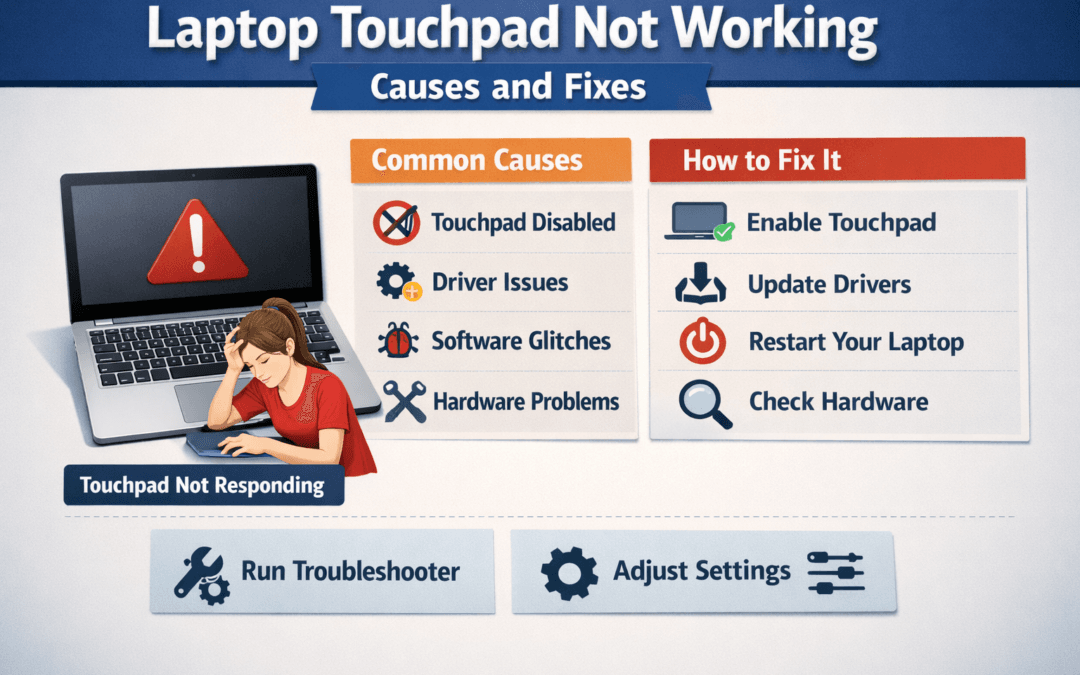
When a Laptop Touchpad Not Working issue appears, daily tasks become slow and frustrating. The touchpad is an essential input device that replaces the need for an external mouse. When it stops responding, users often struggle to identify whether the problem is hardware or software related. A can be caused by disabled settings, outdated drivers, physical damage, or internal connection issues.
Ignoring the issue may lead to further complications, especially if the problem is hardware-based. Early troubleshooting helps prevent unnecessary replacement costs. Understanding common causes and fixes allows users to make informed decisions. At MaxiPleit Services, we diagnose and repair touchpad problems efficiently. Visit https://maxipleitservices.com/ or call 8882841303 for professional laptop repair support.
Working Due to Disabled Settings
Sometimes a Laptop Touchpad Not Working issue is caused by simple settings being disabled. Many laptops allow users to turn off the touchpad accidentally.
Keyboard shortcuts like Fn keys can disable the touchpad without warning. Users often mistake this for hardware failure.
Checking touchpad settings in the control panel is the first troubleshooting step. This often resolves the problem quickly.
Accidental Key Press
Accidental key combinations can cause a Laptop Touchpad Not Working situation instantly. Some laptops have dedicated touchpad keys.
Pressing these keys disables touchpad functionality temporarily. Re-enabling it restores normal operation.
Understanding your laptop’s shortcut keys helps avoid repeated issues in the future.
Because of Driver Issues
Driver problems are a major reason for a Laptop Touchpad Not Working error. Touchpad drivers enable communication between hardware and software.
Outdated or corrupted drivers prevent proper touchpad response. This often happens after system updates.
Reinstalling or updating the correct driver usually fixes the issue. Manufacturer-approved drivers work best.
After Windows Update
Windows updates sometimes conflict with touchpad drivers, causing a Laptop Touchpad Not Working issue.
Generic drivers may replace manufacturer-specific drivers during updates. This reduces touchpad functionality.
Rolling back or reinstalling the correct driver restores proper touchpad performance.
Due to Hardware Damage
Physical damage is a serious cause of a Laptop Touchpad Not Working problem. Drops or pressure damage affect internal components.
Cracks near the touchpad area may indicate internal sensor damage. Liquid spills also damage touchpad circuits.
Hardware inspection is required to confirm the exact fault. DIY attempts may worsen the damage.
After Liquid Spill
Liquid spills often result in a Laptop Touchpad Not Working situation. Moisture causes corrosion inside the laptop.
Immediate shutdown reduces damage risk. Delayed repair increases component failure chances.
Professional cleaning and part replacement improve recovery success.
Due to Loose Internal Cable
A loose internal cable can cause a problem unexpectedly. Touchpads connect to the motherboard via flat cables.
Frequent opening and closing of the laptop may loosen these connections. This interrupts signal transmission.
Re-seating the cable fixes the issue in many cases. This requires professional handling.
After Laptop Repair
Post-repair issues sometimes lead to a Laptop Touchpad Not Working complaint. Improper reassembly causes cable misalignment.
Even minor misplacement affects touchpad response. Quality repair practices prevent such problems.
Professional technicians ensure proper internal connections during servicing.
Due to BIOS Settings
BIOS misconfiguration can result in a Laptop Touchpad Not Working issue. BIOS controls hardware-level settings.
If the touchpad is disabled in BIOS, the operating system cannot detect it.
Checking BIOS settings helps confirm whether the touchpad is enabled. Resetting BIOS often resolves issues.
Working After BIOS Update
A BIOS update may trigger a Laptop Touchpad Not Working situation. Incorrect firmware settings affect hardware recognition.
Reverting to default BIOS settings restores functionality. Professional support ensures safe updates.
Improper BIOS handling can lead to additional hardware errors.
External Mouse Connected
External mouse usage sometimes causes a Laptop Touchpad Not Working problem. Some laptops disable touchpad automatically.
Settings may be configured to turn off the touchpad when a mouse is connected.
Adjusting these settings allows both devices to function simultaneously. This improves user convenience.
Due to Software Conflicts
Third-party software may interfere, causing a Laptop Touchpad Not Working issue. Touchpad utility conflicts are common.
Uninstalling conflicting software restores touchpad performance. Safe mode testing helps identify such problems.
Professional diagnosis ensures accurate conflict resolution.
the Need for Professional Repair
When a Laptop Touchpad Not Working issue persists, professional inspection becomes essential. Modern laptops have delicate internal designs.
Incorrect DIY repairs may damage cables or sensors permanently. Expert technicians use proper tools and methods.
At MaxiPleit Services, we provide reliable touchpad repair and replacement solutions.
If your Laptop Touchpad Not Working problem remains unresolved, visit https://maxipleitservices.com/ or call 8882841303 today for expert assistance.