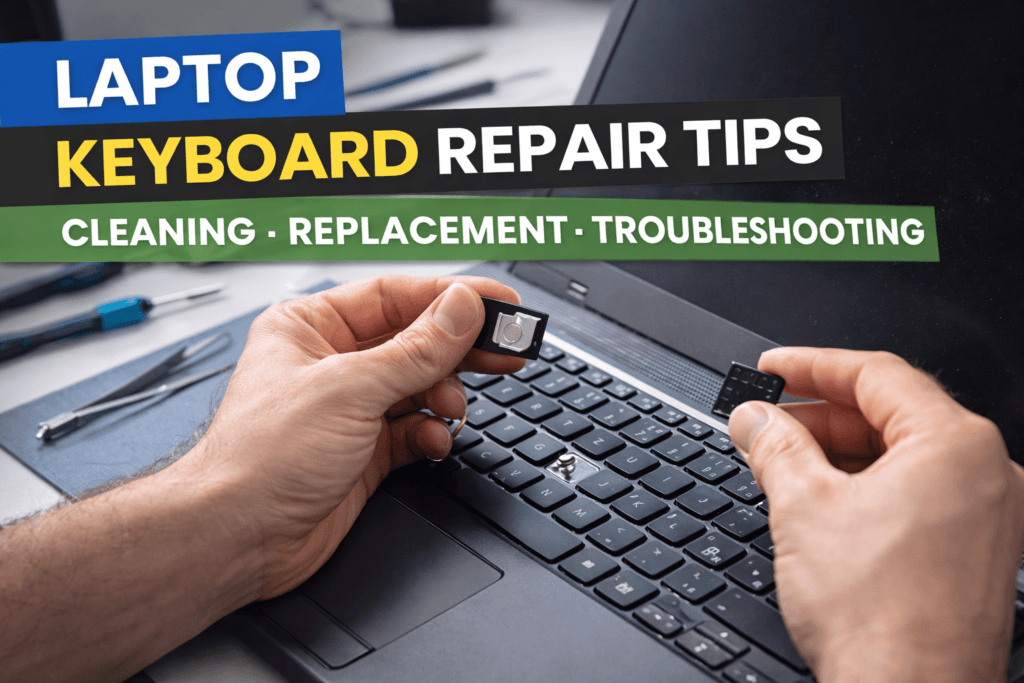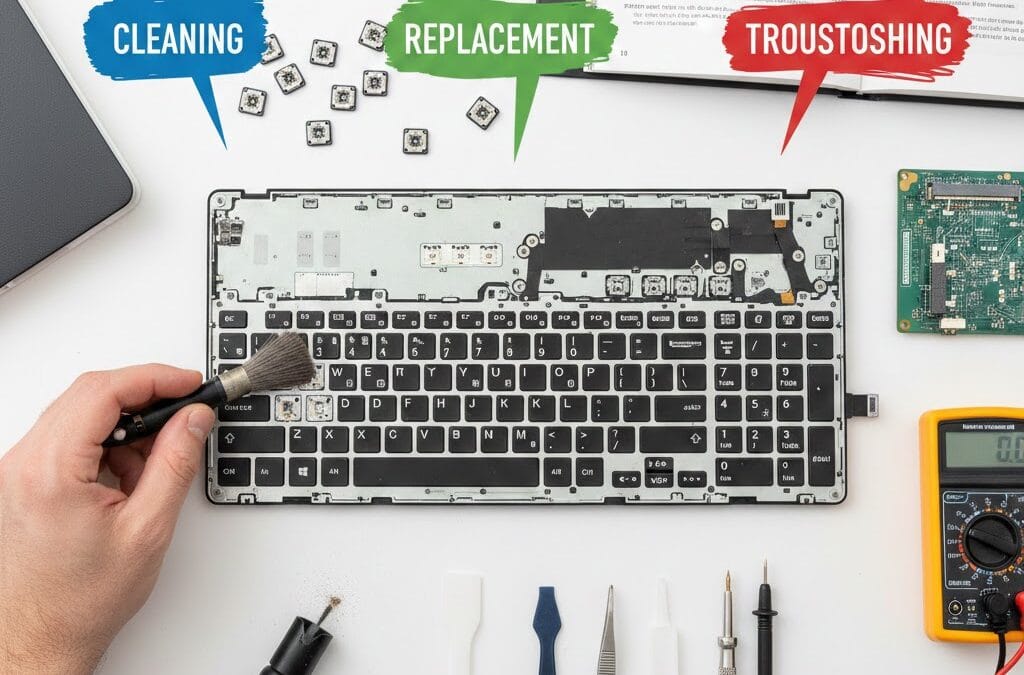
Laptop keyboard problems can interrupt daily work and reduce overall productivity. Keys may stop responding, feel sticky, or produce incorrect characters during typing. With proper guidance, using effective laptop keyboard repair tips can help resolve many of these issues without replacing the entire laptop. At Maxiple IT Services, we regularly assist users in diagnosing keyboard issues safely and accurately. This detailed guide explains keyboard cleaning methods, replacement options, and troubleshooting steps. Whether the issue is caused by dust, liquid spills, or software errors, following the correct process can restore keyboard performance. If the problem becomes complex, expert help is available at 8882841303.
Understanding Common Laptop Keyboard Problems
Laptop keyboards experience continuous wear due to frequent typing and exposure to dust. Common problems include unresponsive keys, repeated characters, or keys that feel loose. In some cases, the issue is physical, while other times it originates from software or system settings.
Identifying the exact cause before repair is essential. Minor issues often require cleaning, while severe damage may need replacement. Correct diagnosis helps apply the most effective repair method.
Signs That Indicate Keyboard Repair Is Needed
Keys that fail intermittently or stop working completely indicate repair requirements. Sticky keys and delayed responses are also early warning signs that should not be ignored.
Hardware vs Software Keyboard Issues
Hardware problems involve physical damage or debris under keys. Software issues often result from outdated drivers or incorrect keyboard settings.
Laptop Keyboard Repair Tips for Safe Cleaning
Cleaning is usually the first step in resolving keyboard issues. Dust, food crumbs, and debris can block key movement and disrupt electrical contacts. Always shut down the laptop and unplug it before cleaning to avoid electrical damage.
Use compressed air to remove debris from between keys. A soft brush helps loosen stubborn dirt safely. Avoid using excessive liquid, as moisture can damage internal keyboard components.
Basic Cleaning Methods Using Laptop Keyboard Repair Tips
Hold the laptop at a slight angle while spraying compressed air between keys. This allows debris to fall out without entering deeper components.
Deep Cleaning Precautions for Laptop Keyboards
Lightly dampen a microfiber cloth with isopropyl alcohol. Wipe keys gently and allow the keyboard to dry fully before powering on.
When to Replace Laptop Keyboard Keys or the Entire Keyboard
If cleaning does not resolve the issue, replacement may be required. Individual keys can be replaced if the internal scissor mechanism remains intact. However, extensive damage usually requires full keyboard replacement.
Replacing a keyboard involves disconnecting internal ribbon cables carefully. Using compatible replacement parts is essential to avoid further damage and ensure long-term functionality.
Laptop Keyboard Repair Tips for Individual Key Replacement
Remove damaged keys gently using a plastic tool. Align the replacement key correctly and press it softly into position.
Full Keyboard Replacement Guidelines
Disconnect ribbon cables carefully during replacement. Install a keyboard designed specifically for your laptop model to ensure compatibility.
Troubleshooting Laptop Keyboard Issues Effectively
Not all keyboard problems are hardware-related. Software issues like outdated drivers or incorrect language settings can cause typing errors. Troubleshooting helps identify these problems quickly.
Update keyboard drivers through your operating system. Check keyboard layout settings and run built-in diagnostic tools to resolve software-related issues efficiently.
Software Fixes Using Laptop Keyboard Repair Tips
Restarting the system can resolve temporary glitches. Installing system updates often improves keyboard performance and compatibility.
Testing the Keyboard After Troubleshooting
Use an online keyboard tester to verify key responsiveness. Confirm all keys function correctly before considering replacement.
Preventive Laptop Keyboard Repair Tips to Avoid Future Problems
Preventive care significantly reduces keyboard repair needs. Avoid eating or drinking near your laptop to prevent spills. Use a keyboard cover to protect against dust and debris buildup.
Regular cleaning and gentle typing habits extend keyboard lifespan. Simple precautions help avoid expensive repairs and maintain consistent performance.
Daily Habits That Protect Laptop Keyboards
Wash hands before typing and avoid pressing keys aggressively. Store the laptop in a clean, dust-free environment when not in use.
When to Seek Professional Keyboard Repair Services
If liquid damage occurs or multiple keys fail, professional repair is recommended. Contact Maxiple IT Services at 8882841303 for reliable keyboard repair solutions.
Laptop keyboard issues can range from minor cleaning needs to full replacement requirements. By following these laptop keyboard repair tips, users can safely diagnose problems and apply effective solutions. For advanced issues or guaranteed results, professional repair ensures your keyboard functions smoothly and reliably.