
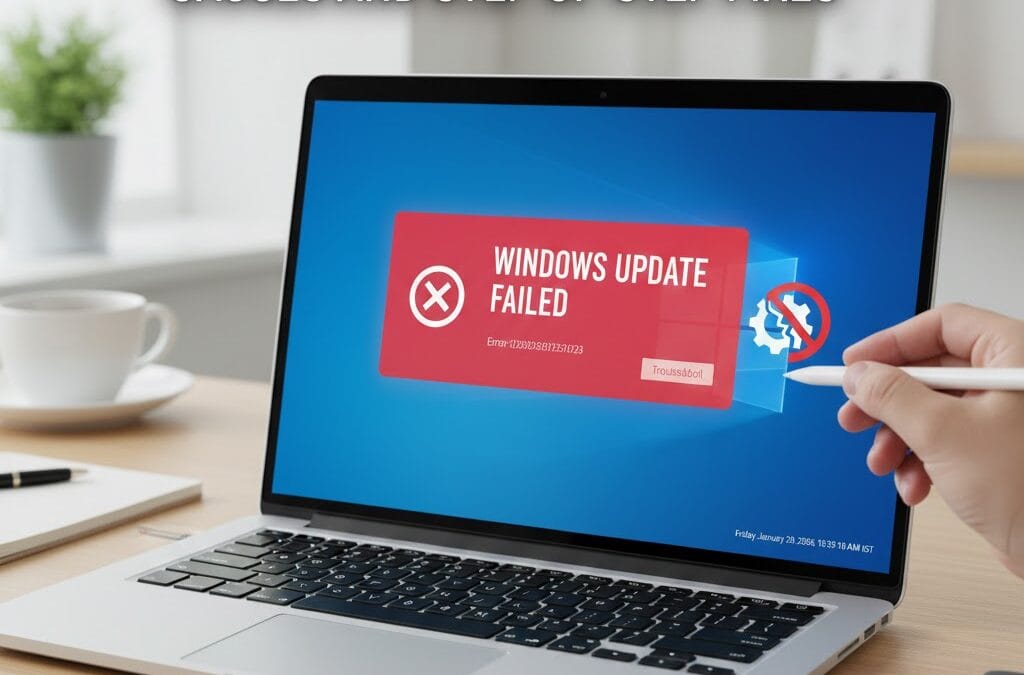
Windows updates are essential for keeping your system secure, stable, and compatible with the latest software. However, many users frequently face Windows Update Errors that interrupt updates, slow down systems, or even cause boot problems. These errors can appear as failed installations, stuck updates, repeated restart loops, or error codes that are difficult to understand. When Windows updates fail, your laptop becomes vulnerable to security risks and performance issues.
In most cases, Windows Update Errors occur due to corrupted system files, software conflicts, insufficient storage, or internet connectivity problems. While some issues can be fixed with basic troubleshooting, others require professional diagnosis to prevent data loss or system damage. At Maxiple IT Services, we provide expert solutions for Windows update and software-related issues. If your laptop is facing update problems, call 88828 41303 or visit https://maxipleitservices.com/ for fast and reliable support.
Understanding Windows Update Errors
Windows Update Errors are system-level issues that prevent Windows from downloading, installing, or completing updates successfully. These errors are often displayed with specific error codes or messages, such as updates stuck at a certain percentage or failing repeatedly.
Common Symptoms of Windows Update Errors
Windows updates stuck or frozen
Update installation failed messages
Repeated restart or update loops
Error codes during updates
Slow system performance after updates
These symptoms indicate underlying software or system file problems that need timely attention.
Common Causes of Windows Update Errors
Several factors can trigger Windows Update Errors, and identifying the correct cause is the first step toward an effective fix.
Corrupted System Files
Damaged or missing Windows system files are one of the most common reasons updates fail. These files are essential for proper installation.
Internet Connectivity Issues
Unstable or slow internet connections can interrupt the update process, leading to incomplete or failed updates.
Insufficient Storage Space
Windows updates require adequate free disk space. Lack of storage can cause update errors or installation failures.
Software Conflicts
Third-party antivirus programs, firewalls, or outdated drivers can conflict with Windows updates and block installations.
Incorrect Windows Services Configuration
If essential Windows services like Windows Update or Background Intelligent Transfer Service (BITS) are disabled, updates will not work properly.

How to Fix Windows Update Errors Step by Step
Fixing Windows Update Errors requires a systematic approach. Below are proven step-by-step solutions that resolve most update-related problems.
Restart Your Laptop
Restarting your system clears temporary glitches and refreshes system services that may be blocking updates.
Check Internet Connection
Ensure you are connected to a stable and fast internet network before retrying updates.
Free Up Disk Space
Delete unnecessary files or move data to external storage to create enough space for updates.
Using Windows Update Troubleshooter
Windows provides a built-in troubleshooter designed specifically to fix Windows Update Errors.
Steps to Run the Troubleshooter
Open Settings and go to System
Select Troubleshoot and then Other troubleshooters
Click on Windows Update
Run the troubleshooter and follow on-screen instructions
This tool automatically detects and fixes common update-related issues.
Reset Windows Update Components
If errors persist, resetting update components can resolve deeper Windows Update Errors.
Steps to Reset Update Components
Stop Windows Update services
Rename SoftwareDistribution and Catroot2 folders
Restart the services
This process removes corrupted update files and forces Windows to download fresh updates.
Fixing Windows Update Errors Using System File Checker
System File Checker (SFC) scans and repairs corrupted system files that cause update failures.
How to Run SFC Scan
Open Command Prompt as administrator
Type
sfc /scannowPress Enter and wait for the scan to complete
Once completed, restart your laptop and retry the update.
Using DISM to Repair Windows Update Errors
Deployment Image Servicing and Management (DISM) is another advanced tool for fixing Windows Update Errors.
DISM Repair Steps
Open Command Prompt as administrator
Run DISM commands to restore system health
Allow the process to complete without interruption
DISM repairs Windows images and resolves issues that SFC cannot fix alone.
Updating Drivers to Prevent Windows Update Errors
Outdated or incompatible drivers often interfere with updates and cause repeated errors.
Why Driver Updates Matter
Ensure hardware compatibility
Prevent update conflicts
Improve overall system stability
Updating drivers regularly helps reduce the chances of Windows Update Errors.
When Windows Update Errors Need Professional Help
Some Windows Update Errors are too complex for DIY fixes and require expert assistance. These include repeated update failures, boot issues after updates, or data corruption risks.
Why Choose Professional Repair Services
Accurate diagnosis of software issues
Safe repair without data loss
Advanced tools and expertise
Long-term system stability
At Maxiple IT Services, our technicians specialize in resolving Windows update and software issues efficiently.
Preventing Windows Update Errors in the Future
Prevention is always better than repair. Following these practices can minimize future Windows Update Errors.
Best Practices
Keep sufficient free disk space
Use reliable antivirus software
Avoid interrupting updates
Perform regular system maintenance
Update drivers periodically
These steps ensure smoother updates and better system performance.
Why Choose Maxiple IT Services for Windows Update Errors
Maxiple IT Services is a trusted name in laptop and software repair solutions. We provide fast, reliable, and affordable services for all Windows-related issues.
Our Advantages
Certified and experienced technicians
Advanced diagnostic tools
Quick turnaround time
Transparent pricing
Customer-focused support
For expert help with Windows Update Errors, contact 88828 41303 or visit https://maxipleitservices.com/ today.
Conclusion
Windows Update Errors can be frustrating, but they are fixable with the right approach. From basic troubleshooting to advanced system repairs, timely action prevents security risks and performance problems. While simple errors can be resolved at home, persistent issues require professional care. Trust Maxiple IT Services for complete Windows update solutions and keep your laptop running smoothly and securely.